How Each Drive Actually Works
Understanding the core difference between an SSD and an HDD removes most of the confusion around choosing one. The distinction comes down to how data is physically stored and retrieved.
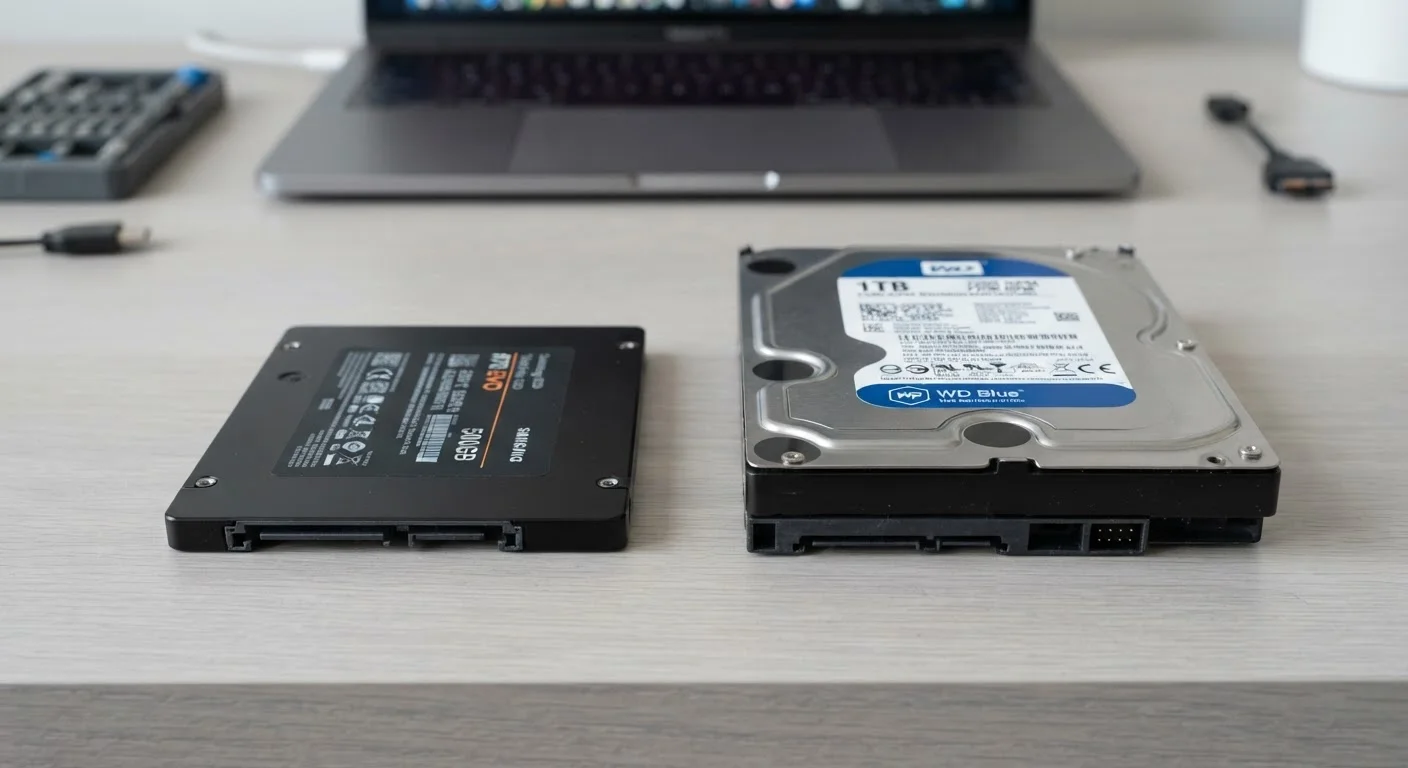
An HDD (hard-disk drive) stores data on circular magnetic platters that spin at high speed - typically 5,400 or 7,200 rotations per minute. A mechanical arm moves across the platter surface to read or write data, much like a record player needle tracking a vinyl groove. This mechanical process introduces a small but real delay every time the drive locates a file.
An SSD (solid-state drive) contains no moving parts at all. It stores data in interconnected flash memory chips - the same underlying technology used in USB thumb drives, just faster and more sophisticated. Because there's nothing to spin up or physically reposition, an SSD can access any piece of data almost instantly.
This architectural gap has real consequences for speed, noise, heat, and durability - all of which affect how your computer feels to use every day. For a broader look at how storage fits into overall system performance, see what RAM, storage, and processor speed actually mean.
| Criterion | SSD | HDD |
|---|---|---|
| Technology | Flash memory chips, no moving parts | Spinning magnetic platters, mechanical arm |
| Read/Write Speed | Very fast (500MB/s-7,000MB/s+) | Moderate (80-160MB/s typical) |
| Boot & Load Times | Noticeably shorter | Longer |
| Shock & Drop Resistance | High - no mechanical parts | Lower - moving parts vulnerable to impact |
| Noise & Heat | Silent, runs cooler | Audible spinning, generates more heat |
| Cost Per Gigabyte | Higher | Lower |
| Typical Capacity Range | 256GB-4TB (consumer) | 500GB-16TB+ (consumer) |
| Best Environment | Laptops, portable devices | Stationary desktops, external storage |
Speed, Durability, and Cost: Where Each Drive Wins
Speed is where the gap is most visible. SSDs can read data several times faster than a typical HDD. When you start up your computer, open a large application, or transfer a folder of photos, an SSD completes those tasks in a fraction of the time. HDDs aren't unusably slow, but the difference is noticeable the moment you use both side by side.
Durability favors SSDs significantly. Because HDDs rely on spinning platters and a moving read/write arm, a sharp knock or drop while the drive is operating can cause physical damage - sometimes resulting in data loss. SSDs have no such mechanical vulnerability, making them considerably more resilient for portable devices.
5-10×
Typical SSD speed advantage over HDD
Sequential read speeds for mainstream SATA SSDs often exceed 500MB/s, compared to roughly 80-160MB/s for a typical consumer HDD.
~50%
Approximate HDD cost-per-GB advantage
Consumer HDDs have historically cost significantly less per gigabyte than SSDs, though the gap has been narrowing as SSD prices decline.
Cost per gigabyte is where HDDs still hold a genuine advantage. For large-capacity storage - think 2TB, 4TB, or more - HDDs remain meaningfully less expensive. This makes them a sensible choice for storing video files, photo archives, or system backups where you need a lot of space without a high price tag.
If you're weighing which type of computer to pair with your storage decision, desktop vs. laptop trade-offs are worth thinking through at the same time.
Choosing the Right Drive for Your Situation
For most people buying a new laptop today, an SSD is the standard - and for good reason. The speed improvement makes the computer feel more capable even if the processor hasn't changed, and the lack of moving parts suits the physical wear of a portable device. If you're shopping for a new system and want it to stay responsive over time, habits that keep a computer running well often depend on having adequate, fast storage.
HDDs remain practical in specific scenarios: an external backup drive that stays on a desk, a desktop used primarily for storing large media files, or a situation where budget is the overriding concern. Some desktop builds even combine both - an SSD for the operating system and frequently used programs, an HDD for bulk storage.
SATA vs. NVMe: A Quick Distinction
SSDs come in two main interface types for consumer computers: SATA and NVMe. SATA SSDs are faster than HDDs but connect through older pathways originally designed for spinning drives. NVMe SSDs connect via a dedicated slot (M.2) and can be dramatically faster still. If your computer supports NVMe, it's worth confirming before purchasing an upgrade. Both are still solid-state - the difference is the connection standard, not the fundamental technology.
One nuance worth knowing: not all SSDs are the same. The interface they use - SATA or NVMe - affects speed. NVMe SSDs, which connect directly to the motherboard via a slot called M.2, are substantially faster than SATA SSDs. SATA SSDs are still much faster than HDDs, but if your computer supports NVMe, it's generally the preferable option. Check your device's specifications or the manufacturer's documentation to confirm compatibility before upgrading.