More Than a Checkbox: Why Accessibility Features Matter for Everyone
The word "accessibility" is often associated exclusively with users who have diagnosed disabilities - but that framing sells these features short. Smartphone makers have invested heavily in tools originally designed for specific needs, and many of them turn out to be genuinely useful for a much wider audience. Bright sunlight makes screens hard to read. Background noise drowns out audio. Aging eyes need larger text. Busy hands need voice commands. These are everyday experiences, and your phone already has answers built right in.
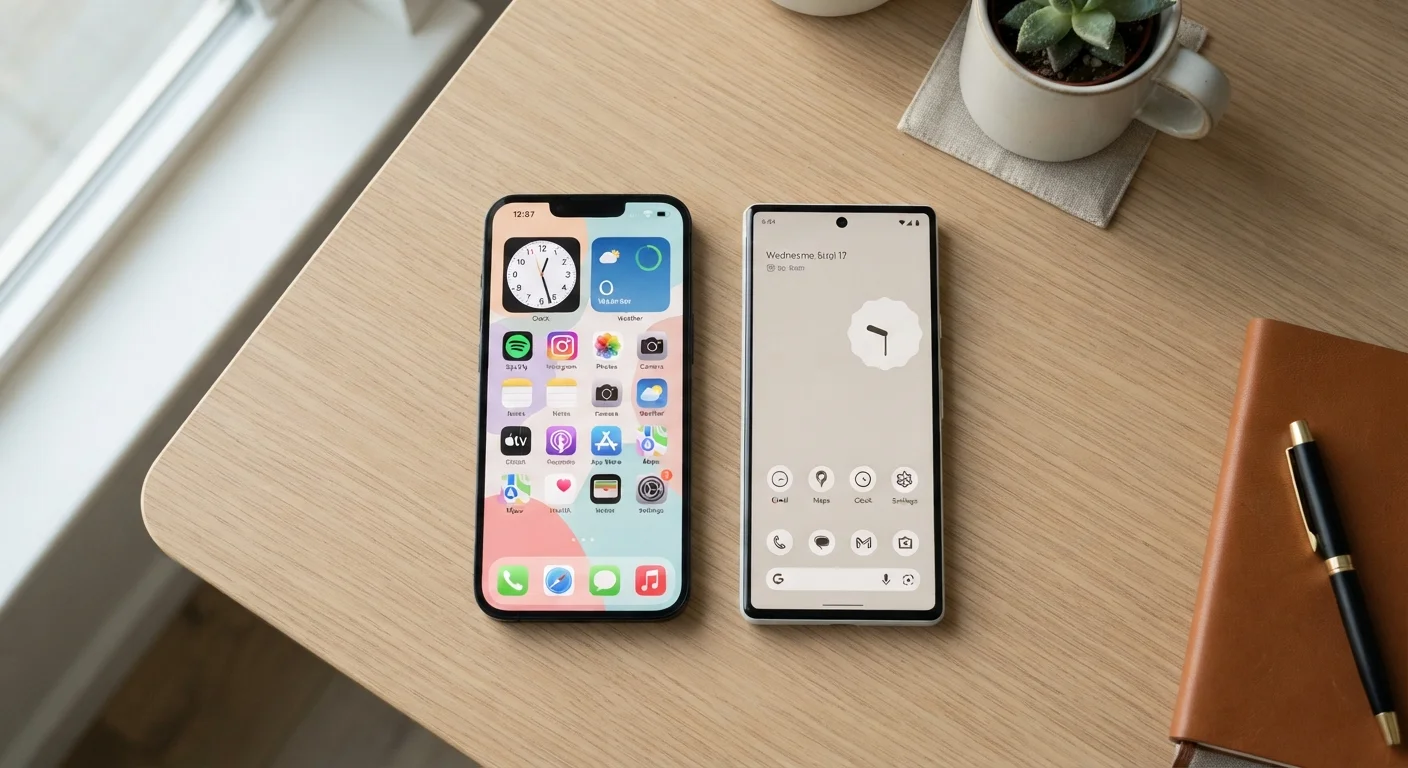
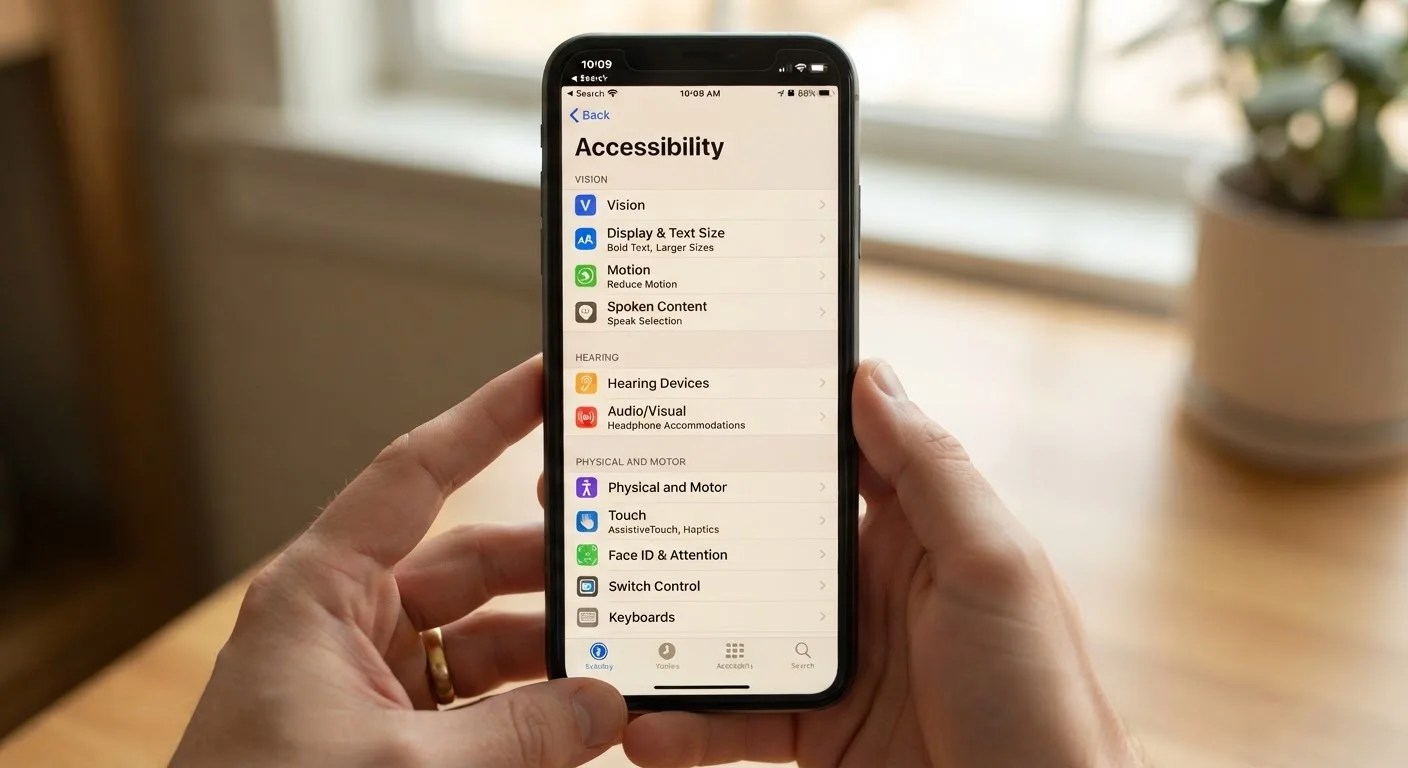
Both major mobile platforms - covered in detail in our comparison of Android and iOS for daily use - have expanded their accessibility offerings significantly over the past several years. You'll find most of these features under Settings → Accessibility on either platform. Here are the ones most worth knowing about.
Display Text Size and Bold Text
Every modern smartphone lets you independently adjust the size of on-screen text and optionally make it bolder. This goes beyond the system font size - many apps respect these settings throughout their interface, meaning menus, messages, and web pages all scale accordingly. On iOS, you can find this under Settings → Display & Brightness → Text Size, with a separate Bold Text toggle. Android places similar controls under Settings → Accessibility → Text and Display.
This feature is particularly useful for anyone who finds themselves squinting or zooming in on text repeatedly throughout the day, regardless of vision status.
Adjusting text size takes seconds and makes a measurable difference in daily readability.
Display Zoom and Magnification
Text size is one thing, but display zoom changes the overall scale of everything on screen - icons, buttons, images, and interface elements all get larger or smaller together. Think of it as adjusting the resolution at which your phone presents its entire interface.
Beyond static zoom, both platforms also offer a dynamic magnifier: a tool that turns part of the screen into a real-time magnifying glass. On iOS this is called Magnifier and can be added to the Control Center. Android offers a similar Magnification feature under Accessibility settings, with options to zoom by triple-tapping the screen. This is genuinely useful for reading small print on packaging, menus, or documents.
The phone's built-in magnifier can replace a physical magnifying glass in a pinch.
Live Captions
Live Captions (available natively on many Android devices and as real-time captions in certain iOS contexts) transcribes audio playing on your phone into on-screen text in real time - without sending audio to the cloud. This means captions appear for videos, podcasts, voice messages, and even phone calls without requiring an internet connection for processing.
The practical applications extend well beyond users with hearing loss. It's equally useful in noisy environments where you can't wear headphones, in quiet settings where you can't play audio aloud, or simply when you want to follow along with something while muting the volume. The accuracy isn't perfect, but it's surprisingly capable for everyday content.
Live Captions work offline, processing audio directly on the device for privacy.
Voice Control and Voice Access
Voice control features - Voice Control on iOS and Voice Access on Android - let users navigate their entire phone using spoken commands without needing to touch the screen. Unlike standard voice assistants, these tools don't just answer questions; they control every part of the interface. You can open apps, tap buttons, scroll, type text, and navigate menus entirely by voice.
This goes far beyond hands-free convenience. For anyone with a temporary injury, a repetitive strain condition, or simply a situation where both hands are occupied, voice control turns a phone into a genuinely accessible device. Setup takes a few minutes and both platforms include tutorials to help users learn the command set.
Voice control lets users operate every part of their phone without touching the screen.
Color Filters and Contrast Adjustments
Smartphones include a range of display adjustments for users who experience color vision differences (commonly called color blindness) or who simply find certain color combinations difficult to distinguish. Both iOS and Android offer color filter overlays - including options for deuteranopia, protanopia, and tritanopia - as well as settings to increase overall display contrast.
High-contrast modes make interface elements easier to distinguish against backgrounds, which is especially helpful in bright outdoor conditions. There's also typically a Reduce Transparency option that eliminates visual blur effects, making text and buttons crisper and easier to read at a glance. These settings don't require any understanding of color science to use - simply enabling them and choosing what looks clearer to you is sufficient.
Color filters and contrast settings can dramatically improve screen legibility in varied conditions.
AssistiveTouch and Switch Access
AssistiveTouch on iOS creates a floating on-screen button that provides shortcuts to gestures and functions that might otherwise require precise multi-finger movements or physical hardware buttons. Users can simulate pinch gestures, access the home screen, adjust volume, or trigger custom shortcuts - all from a single on-screen tap point.
Android's Switch Access allows the phone to be controlled by external switches, a keyboard, or even a single-button device. This opens up smartphone use for people with significant motor limitations. Even for users without such limitations, these tools can surface useful shortcuts that improve general navigation efficiency.
AssistiveTouch brings complex gestures and hardware shortcuts to a single on-screen tap.
Getting Started Without Feeling Overwhelmed
Accessibility menus can look dense at first, but you don't need to explore all of it at once. Start with one feature that addresses something that already mildly frustrates you - maybe text that feels small, or a screen that's hard to see in sunlight - and experiment from there. Most settings can be toggled on and off instantly, so there's little risk in trying something new.
Try Accessibility Shortcuts for Quick Access
Both iOS and Android let you assign accessibility features to a quick-access shortcut - typically a triple-press of the side or home button. This lets you toggle things like magnification, color filters, or voice control on and off instantly without digging through settings. It's worth setting up even for features you only use occasionally.
If you want to dig further into what your phone is capable of beyond accessibility tools - from camera modes to connectivity choices - our guides on phone camera settings and mobile data vs. Wi-Fi can help you make the most of what you already carry around every day.