What Each Backup Method Actually Does
When you back up a mobile device, you're creating a copy of your data - photos, contacts, messages, app settings - so you can restore it if something goes wrong. The two main approaches differ in where that copy lives.
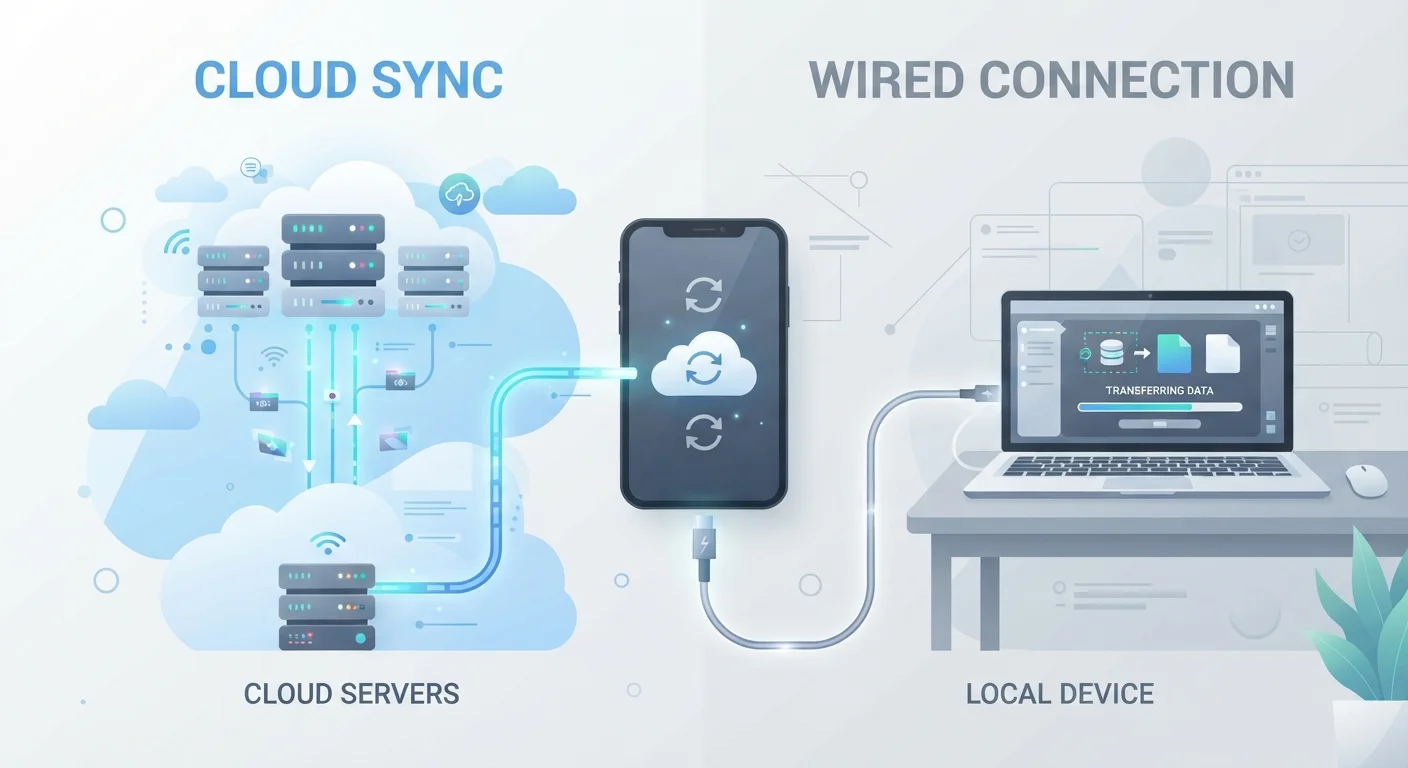
Cloud backup sends your data over the internet to remote servers managed by a company (such as Apple iCloud or Google One). The process typically runs automatically in the background, usually overnight on Wi-Fi. Local backup stores your data on a physical device you own - a computer, an external hard drive, or a USB drive - connected directly to your phone or tablet via cable or local network.
Both methods protect the same core data, but they get there differently and come with distinct tradeoffs. Understanding those tradeoffs helps you choose what fits your life. See also how to keep your device secure for broader data protection habits.
Cloud Backup: Convenience With Caveats
The biggest selling point of cloud backup is that it largely takes care of itself. Once configured, your phone backs up without you lifting a finger - which means most people actually have a recent copy of their data. That passive protection is hard to overstate in value.
Cloud backups are also stored off-site. If your home is flooded or your phone and laptop are stolen at the same time, your data survives because it lives on a remote server. Restoring to a new device is typically straightforward and can even happen during initial setup.
The drawbacks are real, though. Free storage tiers fill up quickly - a few gigabytes won't hold years of photos and videos. Beyond that limit, you'll pay a monthly or annual subscription. Restore speeds also depend on your internet connection, so recovering a large backup can take hours. And because your data lives on someone else's servers, you're trusting that company's security practices and business continuity. Understanding cloud-dependent privacy tradeoffs is worth reading if this concerns you.
| Cloud Backup | Local Backup | |
|---|---|---|
| Automation | Automatic (runs in background) | Manual (must initiate yourself) |
| Cost | Free tier, then monthly subscription | One-time hardware cost |
| Off-site protection | Yes - data stored remotely | No - data stays in same location |
| Privacy | Data held by third party | Data stays with you |
| Restore speed | Depends on internet speed | Typically faster via direct cable |
| Storage limits | Scalable with subscription | Limited by hardware you own |
| Internet required | Yes | No |
Local Backup: Control at a Cost
Local backup puts your data entirely in your own hands. You own the storage hardware, you decide when to back up, and no third party has access to your files. For people who are privacy-conscious or simply prefer not to rely on subscription services, this is a meaningful advantage.
Restoring from a local backup is also typically faster than downloading gigabytes from the cloud - especially if you're on a slow internet connection. A full device restore from a computer can complete in under an hour in many cases.
The catch is that local backup is manual and location-dependent. You have to remember to do it, you need the right cable or network setup, and your backup copy is usually in the same home as your phone. A theft, fire, or flood could take both out at once. Local backups also require you to have a computer or dedicated storage device - not everyone does. If your phone is already struggling with limited space, freeing up storage before backing up can make the process smoother.
Set a Regular Local Backup Reminder
Because local backups don't run automatically, it's easy to go months without one. Set a recurring calendar reminder - once a month is a reasonable baseline for most users. Even a quarterly local backup provides a meaningful safety net alongside your daily cloud sync.
Choosing the Right Approach - or Both
For most everyday users, the practical answer is a combination of both methods - often called the 3-2-1 rule in data management: keep three copies of your data, on two different types of storage, with one copy off-site. A cloud backup handles the off-site piece automatically; a local backup on an external drive gives you a fast, private recovery option.
If you're choosing just one, consider these factors: How reliable is your internet connection? How much data do you have? Are you comfortable paying a recurring subscription? Do you regularly sit down at a computer? Your answers point clearly toward one approach or the other.
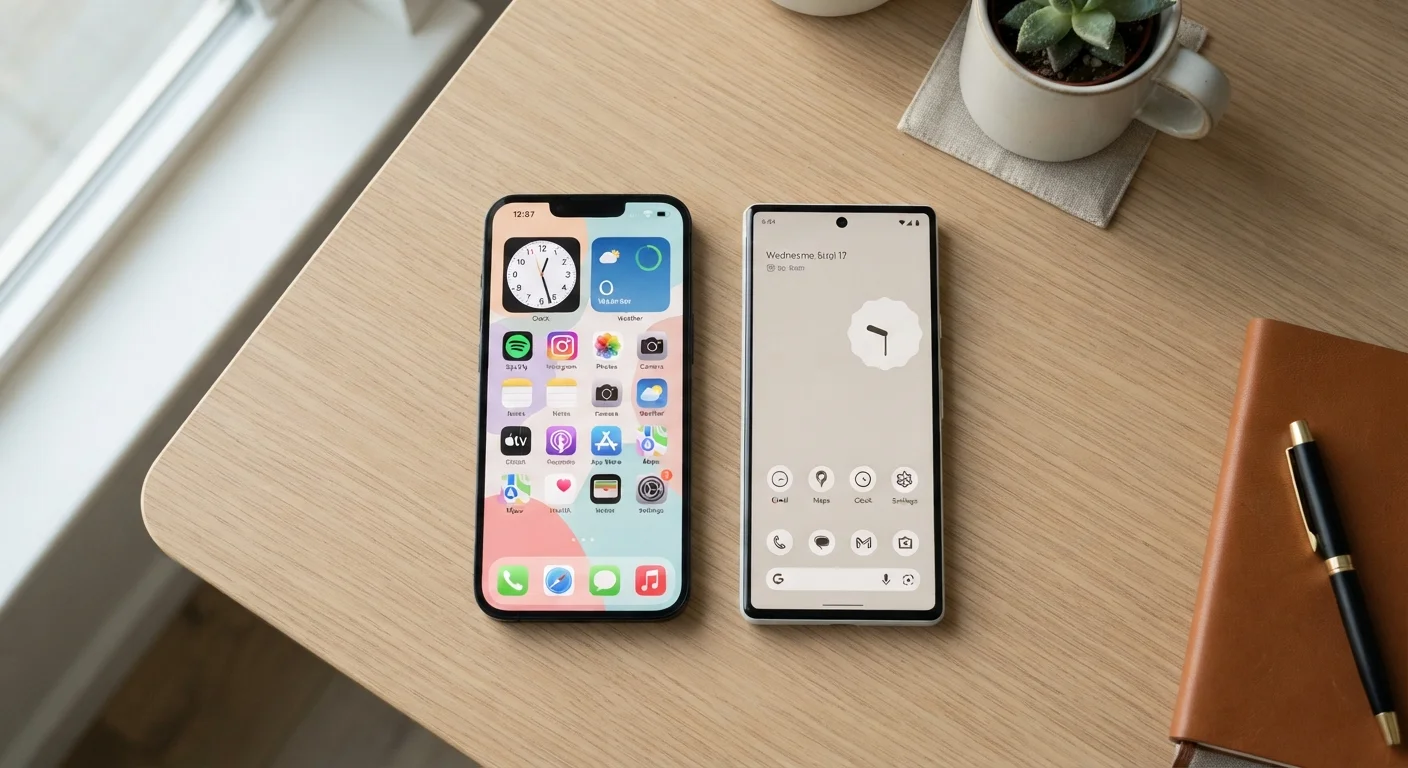
It's also worth noting that your operating system affects your options. iOS users have iCloud and iTunes/Finder for local backups; Android users have Google One for cloud and manufacturer tools or third-party software for local. How Android and iOS handle backup differently is one more layer to consider when making this decision. And if you use mobile data frequently, understanding when to use Wi-Fi vs. mobile data helps ensure cloud backups don't quietly eat your data plan.