Why Phone Storage Fills Up Faster Than You Expect
Modern smartphones pack in high-resolution cameras, streaming apps, and chat platforms - all of which accumulate data quietly in the background. A single minute of 4K video can consume over 300 MB, and messaging apps routinely cache images, audio clips, and documents you've long forgotten. Meanwhile, apps frequently store temporary files - called cache - to speed up loading, and those files build up over time without any visible warning.
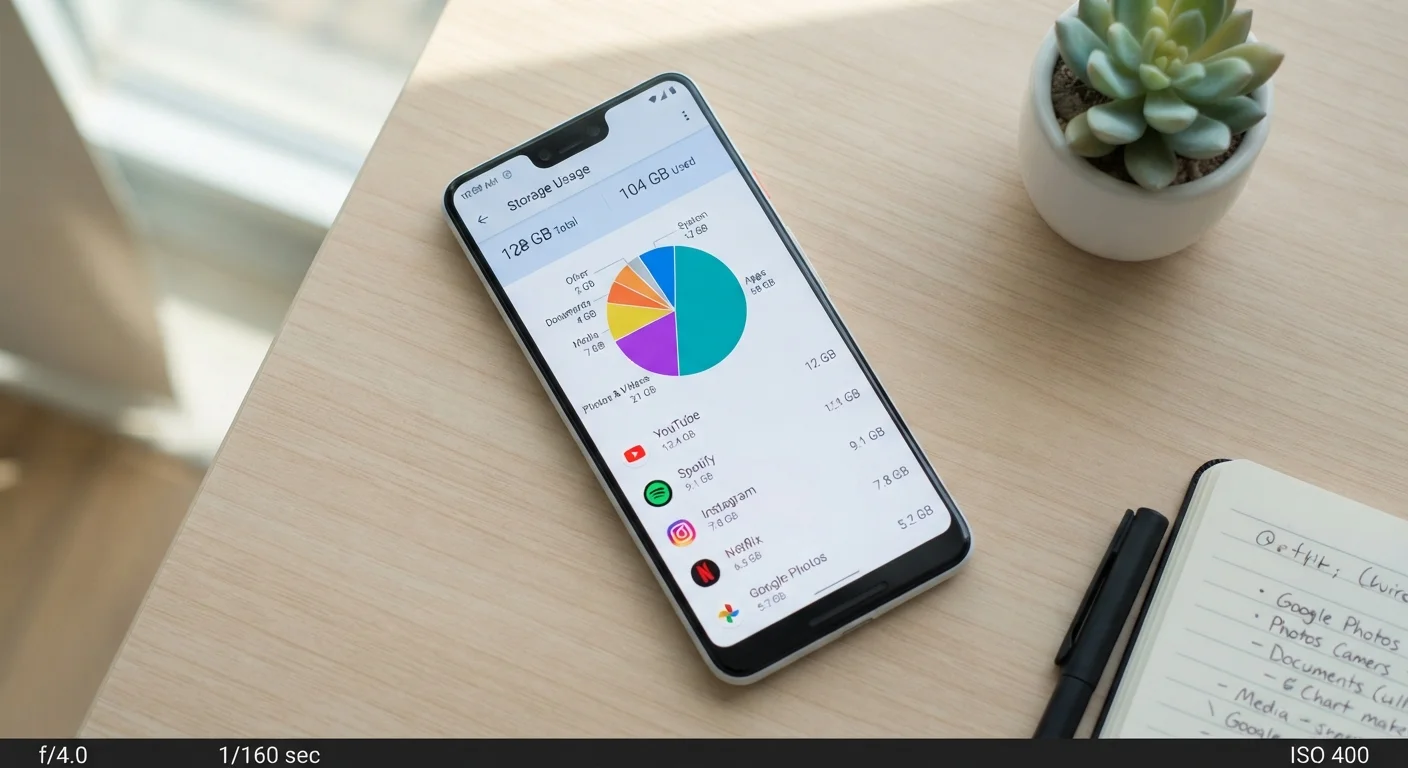
Understanding where your storage actually goes is the first step. Both Android and iOS include a built-in storage breakdown tool that shows exactly which categories (apps, photos, system, etc.) are consuming the most space. On iPhone, find it under Settings > General > iPhone Storage. On Android, the path varies by manufacturer but is typically Settings > Storage. Take a moment to review yours before diving in.
Also worth knowing: the storage capacity printed on your phone's box is never fully available to you. The operating system and pre-installed apps occupy a fixed portion from the start. A "128 GB" phone might offer around 110-115 GB of usable space in practice.
What you will need
Step-by-Step: Reclaiming Space Without Losing Anything Important
Work through these steps in order. The earlier steps are the quickest and carry zero risk of data loss - save the trickier decisions for later, once you know how much space the easy wins have recovered.
Check Your Storage Breakdown First
Before deleting anything, open your phone's built-in storage screen (Settings > General > iPhone Storage on iOS; Settings > Storage on most Android devices). Note which categories - photos, apps, messages, system - are consuming the most space. This tells you where to focus your effort and prevents wasting time on low-impact areas.
Clear App Caches
On Android: go to Settings > Apps, select an app, tap Storage, then tap Clear Cache. This removes temporary files the app created to speed up loading. Your account data and personal content inside the app remain untouched.
On iPhone: iOS does not expose a manual cache-clear button for most apps. The equivalent is to offload the app (see Step 3) or, for browsers, go to Settings > Safari > Clear History and Website Data. Some apps (like Spotify or Podcasts) have a built-in storage setting within the app itself.
Offload or Delete Unused Apps
On iPhone, "Offload App" (Settings > General > iPhone Storage > select an app > Offload App) removes the app's code and data while preserving your personal documents and settings. If you reinstall later, you pick up where you left off. You can also enable automatic offloading under the same menu.
On Android, the equivalent is simply uninstalling the app. If you're concerned about losing progress in a game or app, check whether the app stores data to the cloud before uninstalling.
Back Up Photos and Videos, Then Remove Local Copies
Photos and videos are almost always the single largest category on a phone. Use a cloud service (iCloud Photos, Google Photos, or similar) to back up your library, then remove the full-resolution originals from the device. On iPhone, enabling iCloud Photos and choosing Optimize iPhone Storage does this automatically - keeping smaller previews on-device while the originals live in the cloud. On Android, Google Photos offers a Free Up Space option that deletes locally stored copies of photos already backed up.
Clear Downloads and Large Files
Check your Downloads folder (Files app on iPhone; Files or My Files on Android) for large items you no longer need - PDF documents, old ZIP files, or video downloads from streaming apps. Streaming apps in particular let you download content for offline playback, and those files can easily reach several gigabytes. Delete offline downloads you've already watched or listened to; you can always re-download them later.
Manage Messages and Attachments
Chat apps like iMessage, WhatsApp, and others accumulate photos, videos, voice notes, and documents shared in conversations. In iMessage, go to Settings > General > iPhone Storage > Messages to review and delete large attachments without erasing the conversation text. In WhatsApp, open Settings > Storage and Data > Manage Storage to sort chats by size and selectively remove media.
Don't Skip the Backup Step Before Deleting
Some storage-clearing actions - particularly deleting app data or uninstalling apps on Android - cannot be undone. Before removing photos, videos, or app data in bulk, confirm that your cloud backup is current and that all files have fully synced. A few extra minutes of verification can prevent permanent data loss.
Staying Ahead of Storage Problems Long-Term
Once you've cleared the backlog, a few habits will keep storage from creeping back up. Enable automatic cloud backup for your photos so new shots are synced and can be removed from the device without worry - our guide on cloud backup vs. local backup for mobile devices walks through the tradeoffs of each approach. Consider setting a monthly calendar reminder to revisit your storage breakdown and clear any fresh cache accumulation.
If your phone is also running sluggishly or the battery seems to drain faster than usual, storage pressure can be a contributing factor - though it's rarely the only one. Learn about common battery drain culprits to address those issues alongside your storage cleanup. And if you're setting up a new device, this new phone setup checklist can help you start organized from day one.
A Monthly Five-Minute Checkup Goes a Long Way
Setting a recurring reminder to review your storage breakdown once a month keeps the problem manageable. Clearing a cache here and removing a downloaded playlist there takes far less time than a full cleanup - and you'll rarely see the dreaded "storage full" notification again. You can pair this habit with a quick security review; our guide on keeping your smartphone secure without the hassle covers both in a similar low-effort approach.