Why Battery Drain Feels Random (But Rarely Is)
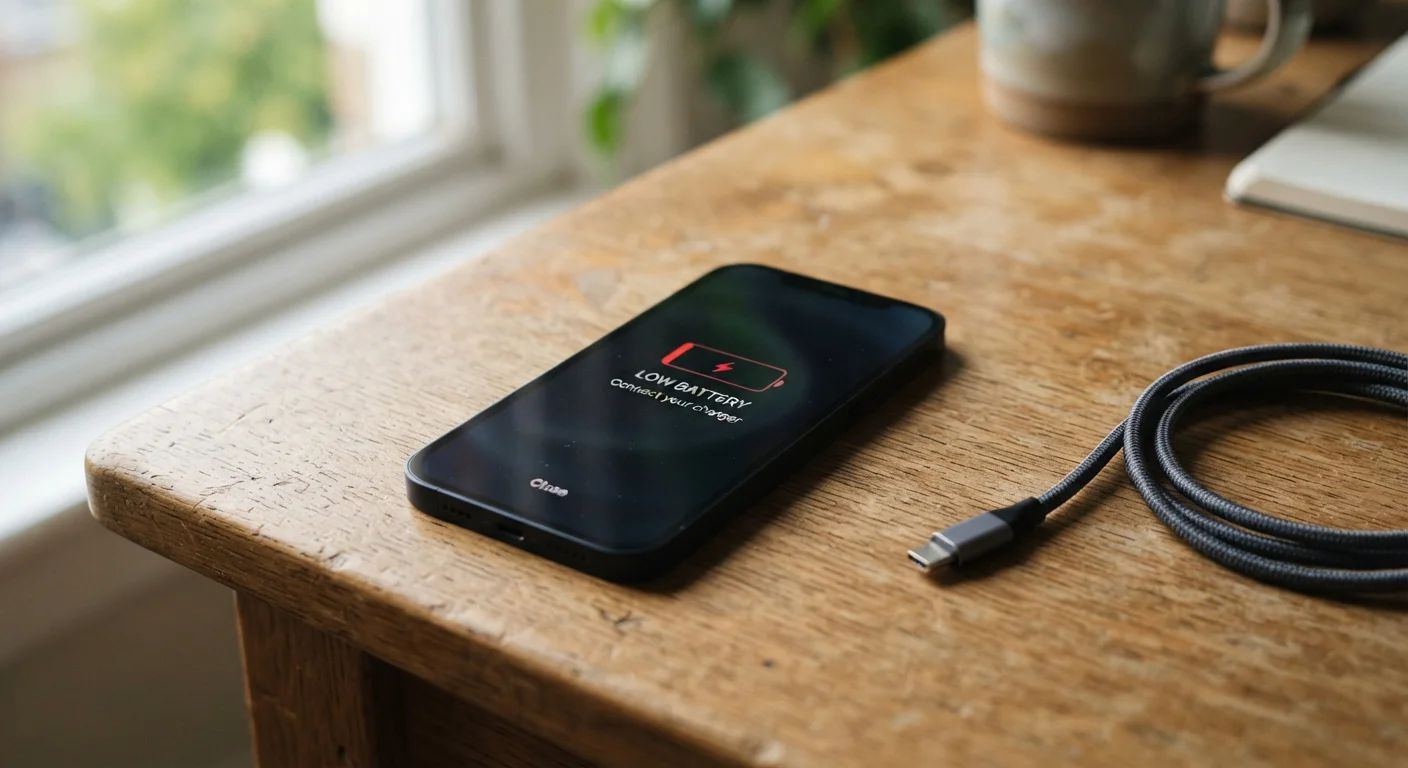
If your phone used to last a full day and now barely makes it to evening, something specific has changed - it's almost never random. Battery drain on smartphones traces back to a predictable set of hardware behaviors and software settings, most of which users can address directly without any technical expertise.
The challenge is that many drain sources are invisible during normal use. Background processes, always-on radios, and location services all consume power without any visible screen activity. Understanding where power actually goes is the first step toward getting more from a single charge.
Battery Health Degrades Naturally Over Time
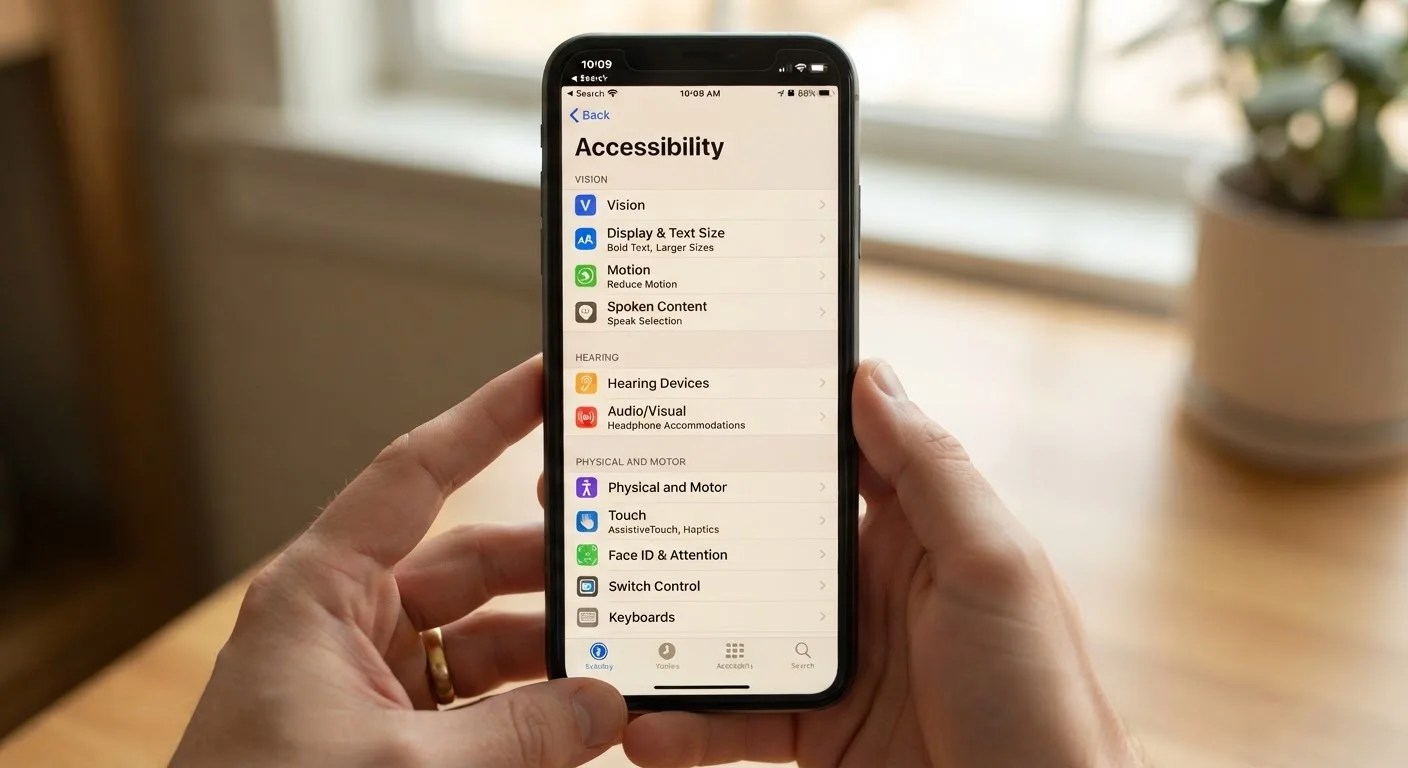
Lithium-ion batteries - used in virtually all modern smartphones - lose capacity with each charge cycle. After 300-500 full cycles, most batteries retain noticeably less charge than when new. Both Android and iOS include battery health indicators in their settings menus, and checking yours is the first step toward understanding whether your drain issues are software-related or physical.
The Most Common Mistakes That Kill Your Battery
The habits below account for the majority of battery complaints among everyday smartphone users. Each one is fixable - often in under a minute - once you know what to look for.
Leaving screen brightness at maximum all the time.
Why it happens: Maximum brightness looks great indoors and feels necessary outside, so many people simply leave it there permanently.
Allowing all apps to use location services continuously.
Why it happens: Apps request location access during setup and most users tap 'Allow' without reviewing whether 'Always On' is actually needed.
Keeping Wi-Fi, Bluetooth, and mobile data all active when only one is needed.
Why it happens: These radios are on by default and people rarely think to toggle them based on context.
Ignoring background app refresh and push notification settings.
Why it happens: Users want apps to feel instant and up-to-date, so background refresh is left enabled for every app by default.
Charging habits that accelerate battery wear over time.
Why it happens: Many people have heard conflicting advice about charging - including myths about always charging to 100% or fully draining before recharging. For a deeper look, see our piece on common smartphone myths.
It's also worth noting that security features like background sync for two-factor authentication apps do consume some battery. Our guide to keeping your smartphone secure explains how to balance protection with practical battery impact.
Avoid Third-Party 'Battery Saver' Apps
Apps marketed as battery optimizers often request broad background permissions and can actually increase drain rather than reduce it. Both iOS and Android have built-in battery management tools that are more effective and far less risky. Stick to your phone's native settings rather than downloading unverified utilities.
Where to Start: Your Phone's Built-In Battery Diagnostics
Before changing any settings, spend two minutes in your battery usage menu. Both Android and iOS display a breakdown of which apps have consumed the most power over the past 24 hours or week. If a single app appears at the top unexpectedly - especially one you haven't actively used - it's a strong signal that background activity is the culprit.
Look specifically for apps with high 'background' usage versus 'screen on' usage. High background drain from an app you rarely open means that app is working constantly without your awareness. Restricting its background permissions or removing it entirely typically produces an immediate improvement.
~500
Charge cycles before noticeable battery capacity loss
Most lithium-ion smartphone batteries begin showing significant capacity reduction after approximately 300-500 full charge cycles, according to battery chemistry research.
~30%
Share of battery drain attributed to the display
Display backlight is consistently cited by smartphone manufacturers and power management researchers as one of the top three battery consumers on modern devices.
If your battery health reading shows below 80% capacity, hardware wear - not settings - may be the primary issue, and a battery replacement (available through the manufacturer or an authorized repair service) is worth considering. For related device maintenance habits, the principles in why computers slow down over time apply broadly to how usage patterns degrade device performance across the board.