Why a Checklist Makes Setup Easier
Unboxing a new phone is exciting - but it's also easy to skip important steps when you're eager to start using it. A rushed setup can mean missing security settings, losing old data, or spending days fixing problems that a few minutes of preparation would have prevented.
This checklist walks you through every stage of setup in a logical order, from securing your old phone's data all the way to personalizing your new one. Whether this is your first smartphone or your tenth, having a structured approach makes the process faster and more reliable. If you're new to smartphones entirely, you may want to start with our beginner's introduction to smartphones before diving in here.
Your old phone
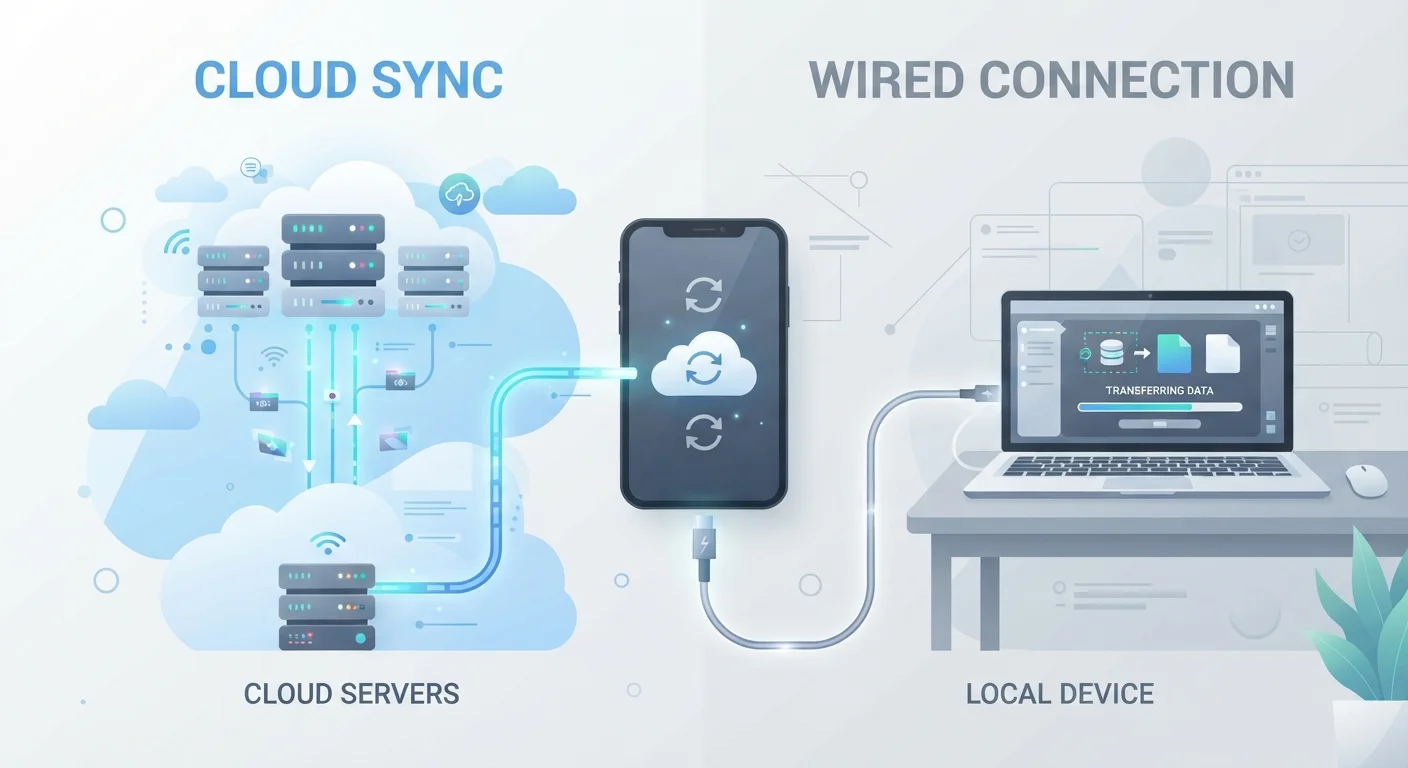
Needed to complete a final backup and verify all data has transferred before factory-resetting or trading it in.
Apple ID or Google account credentials
Required to activate the device, restore a backup, and access core platform services.
Wi-Fi connection
Needed for downloading updates, restoring from a backup, and initial account setup without consuming mobile data.
SIM card or carrier account details
Required to activate cellular service, whether via a physical SIM or eSIM provisioning.
Password manager app
Helps you create and store strong, unique passwords for every account from day one.
Phone case and screen protector
Fitting these before heavy use protects the device from drops and scratches immediately.
Your Complete New Phone Setup Checklist
Work through these groups in order. Each one builds on the last, so completing them sequentially reduces the chance of running into snags mid-setup.
Before You Open the Box
Initial Power-On and Account Setup
Security and Privacy
Connectivity and Accounts
Personalization and Preferences
Storage and Maintenance Readiness
Don't Trade In Your Old Phone Too Soon
Keep your old phone until you have fully confirmed that all contacts, photos, messages, and app data have transferred correctly to the new device. Some app data - particularly from third-party messaging and banking apps - may not transfer automatically through a standard backup. Verify everything is working on the new phone before wiping or sending in the old one.
Once you've finished, it's worth thinking ahead about long-term security habits. Our article on keeping your smartphone secure without the hassle covers practical habits that protect your device every day going forward. And if storage fills up sooner than expected, freeing up space on a full phone explains how to reclaim room without losing what matters.
A Few Things Worth Knowing Before You Start
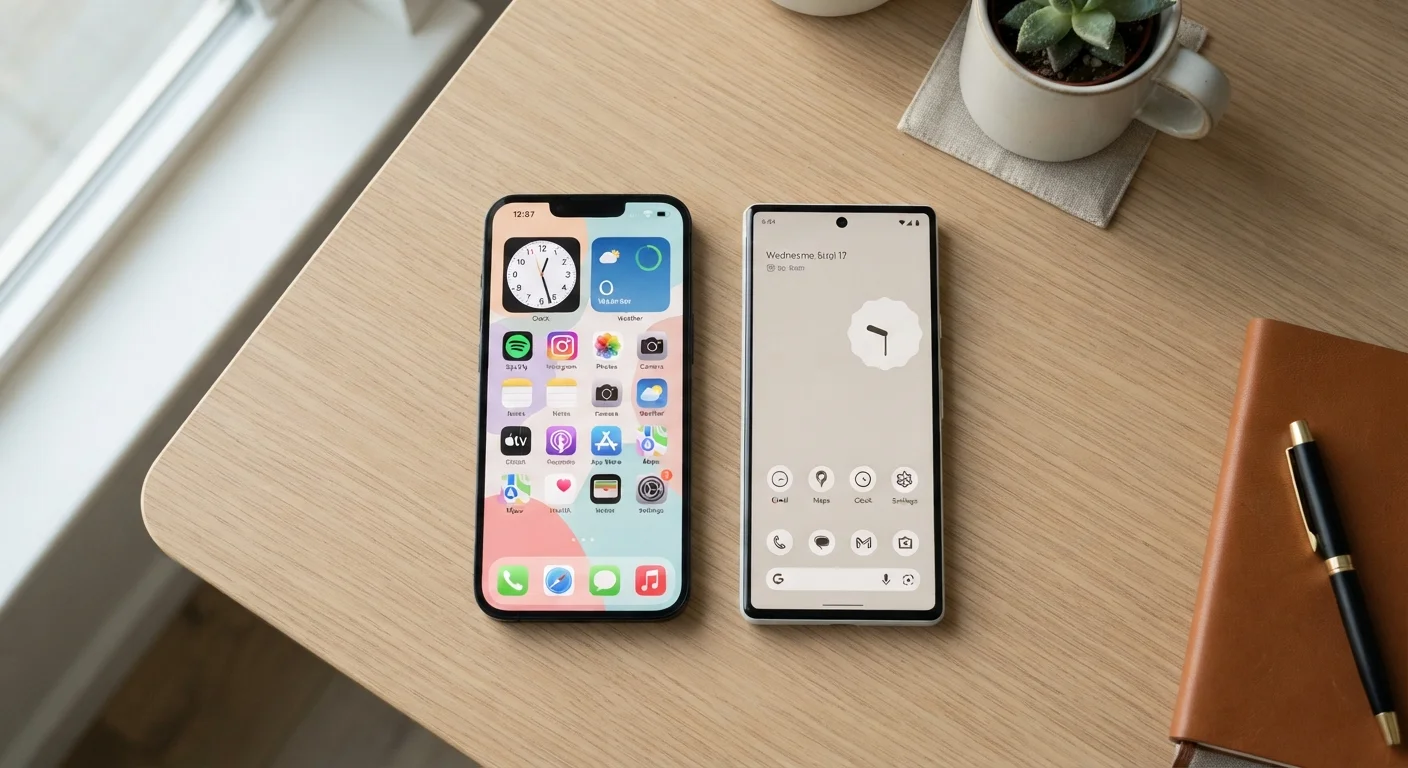
Setup experiences differ between Android and iOS devices, and even between manufacturers - so the exact menu names you encounter may vary slightly from what's described here. If a setting isn't where you expect it, use the device's built-in search function (usually accessible by swiping down from the home screen) to locate it quickly.
Avoid Setting Up Over Public Wi-Fi
Initial device setup involves signing in to your accounts and potentially transferring personal data, which makes it a poor time to use an open public network. Complete setup on a trusted, password-protected Wi-Fi connection - such as your home network - before using the phone on public hotspots. If you must use public Wi-Fi later, consider enabling a VPN first.
If you're also setting up a new computer around the same time, the same methodical approach applies - see our guide on setting up a new computer without the headaches for a parallel walkthrough. And if you're heading somewhere soon and need your phone travel-ready, the pre-trip checklist includes essential digital preparation steps as well.