Why setup order matters more than most people realize
Setting up a computer feels straightforward until something goes wrong - a lost file, a forgotten password, or a security scare that could have been avoided. The sequence of steps you follow in the first hour determines how secure, organized, and recoverable your machine will be for years to come.
Unlike setting up a smartphone (see our guide for smartphone beginners for a comparison), a computer setup involves more configuration choices with longer-term consequences - particularly around security and data backup. Taking 30 to 90 minutes to do it deliberately pays off immediately.
What you will need
Wi-Fi network credentials
Required to connect during setup and download critical system updates.
Microsoft Account or Apple ID
Enables cloud backup, app downloads, and account recovery on your new machine.
External hard drive or USB drive
Useful for transferring files or creating a local backup of your old computer.
Password manager app
Stores and generates strong, unique passwords so you don't have to remember them all.
Follow these steps in order
The steps below apply to both Windows PCs and Macs, with notes where the two differ. Work through them from top to bottom - each one builds on the last.
Plug in and power on - but don't rush past setup screens
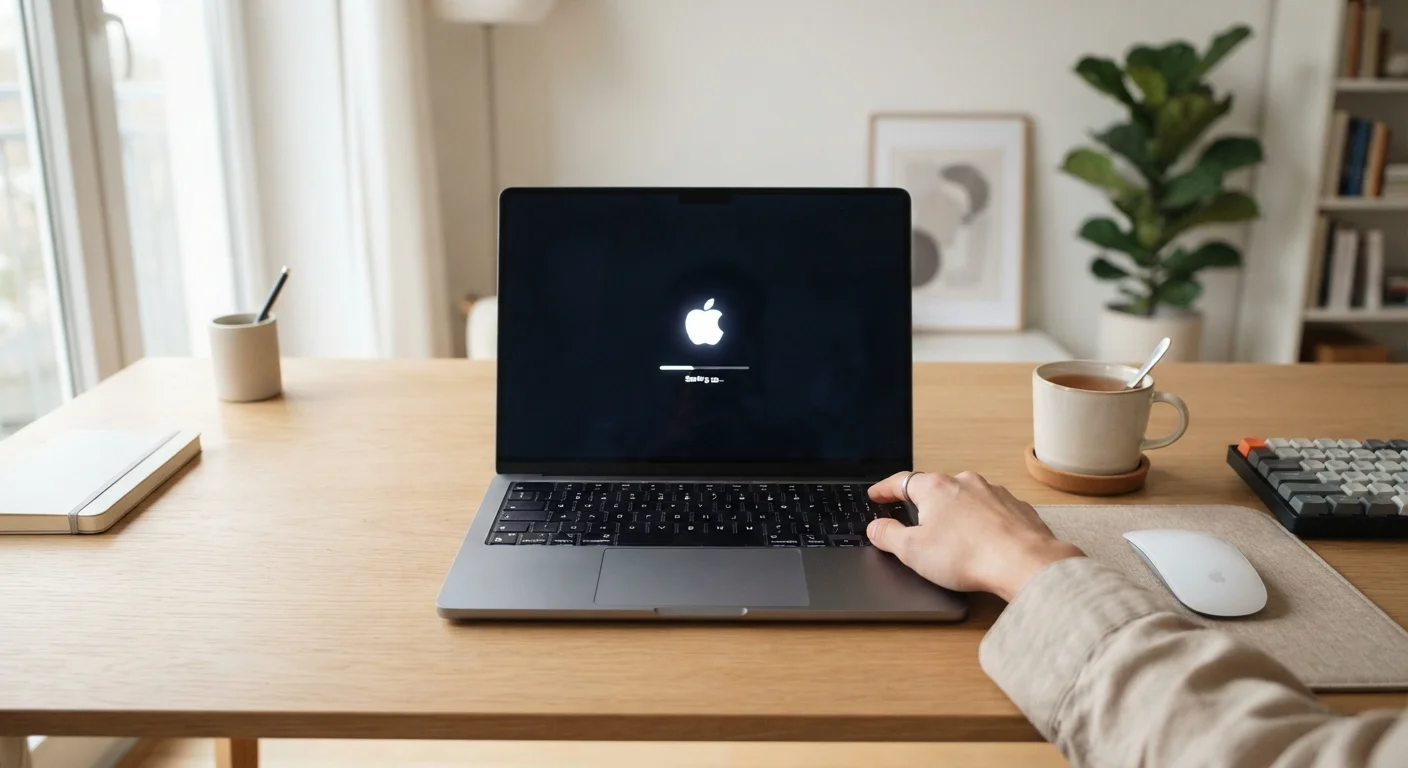
Connect your computer to power before turning it on. Low battery during initial setup can interrupt the process and, in rare cases, cause configuration errors. Once powered on, move through the language, region, and keyboard layout screens carefully - these affect how your system behaves going forward and can be tedious to change later.
Connect to Wi-Fi and sign in to your account
When prompted, join your home Wi-Fi network. Both Windows and macOS will ask you to sign in to a Microsoft Account or Apple ID respectively. This step links your computer to cloud backup, the system app store, and account recovery tools. If you don't have an account yet, you can create one during this step - use a real, accessible email address you control.
Run all available system updates immediately
Before installing any apps or transferring any files, check for operating system updates. On Windows, go to Settings → Windows Update. On a Mac, go to System Settings → General → Software Update. New computers often ship with an OS version that is weeks or months old, meaning known security vulnerabilities may be present. Allow updates to install and restart if prompted - repeat until no more updates are available.
Set a strong password and enable disk encryption
If the setup process didn't already prompt you to create a login password, do it now. Choose a password that is at least 12 characters and combines letters, numbers, and symbols. Next, enable disk encryption: on Windows, this is called BitLocker (found in Settings → Privacy & Security); on a Mac, it's called FileVault (found in System Settings → Privacy & Security). Encryption scrambles your data so it's unreadable if your computer is ever lost or stolen.
Transfer files selectively from your old computer
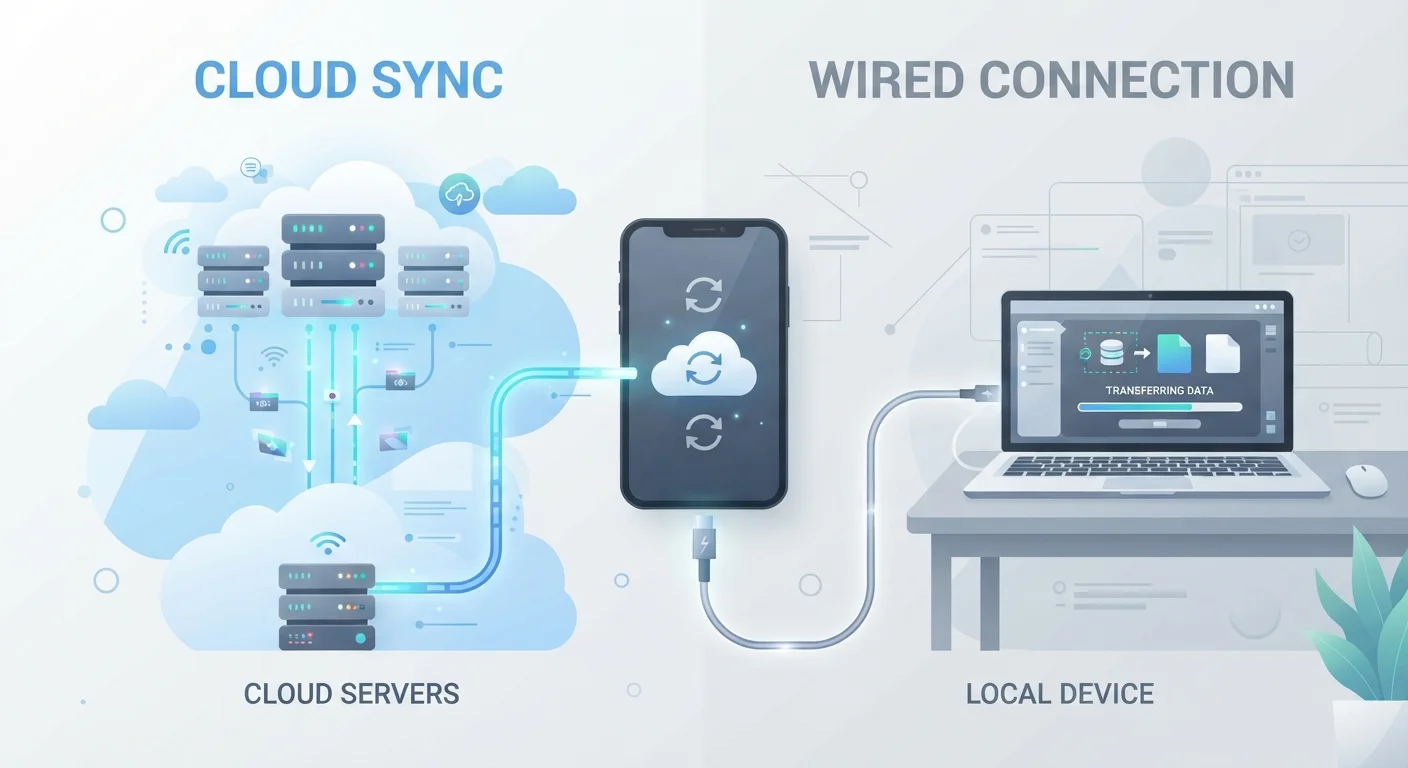
Resist the temptation to copy everything from your old machine. Instead, identify what you actually need: documents, photos, and any project files. Both Windows (PC migration assistant tools) and macOS (Migration Assistant, found in Applications → Utilities) offer guided transfer utilities. Alternatively, copy files manually to an external drive or upload them to cloud storage like iCloud or OneDrive, then download only what you need on the new machine.
Install only the apps you know you need
Download applications from official sources: the Microsoft Store, the Mac App Store, or directly from the software publisher's website. Avoid downloading software from unfamiliar third-party download sites, which sometimes bundle unwanted programs. Start with your most essential tools - a browser, any productivity apps, and a reputable security tool - then add more only as you need them. Many new computers come pre-loaded with trial software; uninstall anything you don't plan to use.
Unboxing Doesn't Mean It's Ready to Use
A brand-new computer is not secure or fully functional straight out of the box. Without updates and a strong password applied before regular use, the machine is more vulnerable than it will be after a proper setup. Treat the first session as configuration time, not browsing or work time.
Once your computer is set up and secured, you might also want to explore connecting it to other devices in your home. Our article on building a simple smart home routine is a natural next step for extending what your new machine can do.
What to do if something goes wrong
If you encounter an error during setup, the most reliable first step is a full restart. Many setup issues resolve on their own after the system finishes background processes. If a specific step fails - such as a software update that won't complete - search the exact error code or message on the manufacturer's support site (Microsoft Support or Apple Support) for documented solutions.
Keep Your Setup Notes Somewhere Safe
As you go through setup, jot down your account email addresses, the names of any apps you install, and any license keys you enter. Store this in a secure note in a password manager or a physical notebook kept somewhere safe. This simple habit saves significant time if you ever need to reinstall or recover your system.
If you're migrating from an old device and realize files didn't transfer correctly, check whether your old machine is still accessible before assuming data is lost. Acting quickly matters: the longer you wait, the more limited your recovery options may become.
This article is for general informational purposes. Software features and menu locations may vary by operating system version. Always verify setup steps against your device's official documentation.