What a Smartphone Actually Is
A smartphone is a handheld computer that can also make phone calls. That reframing matters because it shifts how you think about everything on the device - the apps, the settings, the accounts - from mysterious phone features to logical computer functions you can learn at your own pace.
Most smartphones connect to the internet in two ways: through a Wi-Fi network (like your home router) or through a cellular data plan provided by a carrier. Many daily tasks - browsing, email, streaming - work on either connection. Understanding which you're using at any moment is often displayed as a small icon at the top of the screen.
If you're also thinking about how a phone compares to a traditional computer, our introduction to computers for first-time buyers walks through the key differences in plain terms.
Operating System (OS)
The core software that runs your phone and controls how apps, settings, and hardware interact. iOS and Android are the two main smartphone operating systems.
Storage (GB)
Gigabytes (GB) measure how much content your phone can hold - apps, photos, videos, and files. More GB means more space, but it also typically means a higher price.
Two-Factor Authentication
A security method that requires two forms of verification - usually your password plus a code sent to another device - before granting account access.
Cellular Data
Internet access provided through your mobile carrier's wireless network, allowing you to go online without a Wi-Fi connection. Your carrier plan determines how much data you can use each month.
App Permissions
The access rights an app requests on your phone, such as location, camera, or microphone. You can review and change these in your phone's Settings.
Cloud Backup
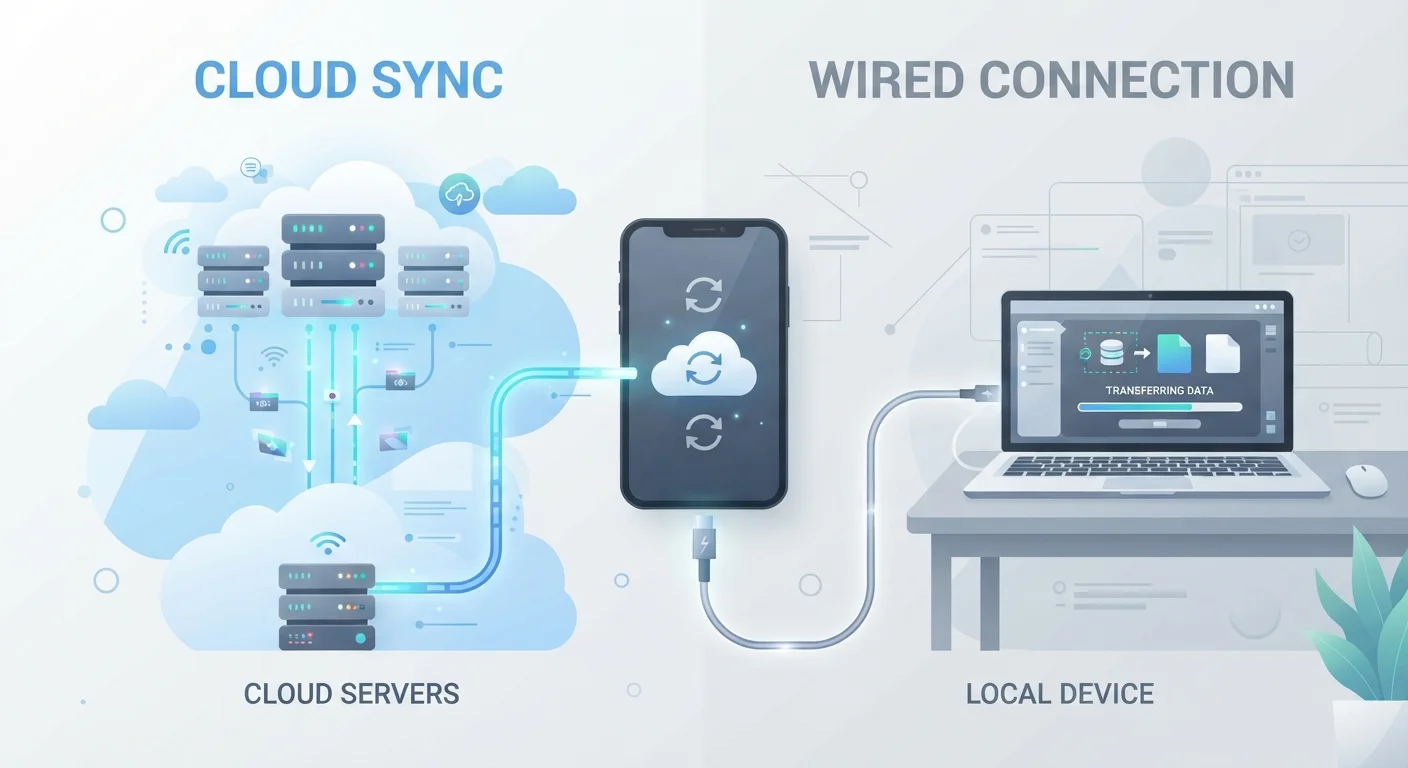
An automatic copy of your phone's data - contacts, photos, app settings - stored on remote servers so it can be restored if your phone is lost or replaced.
Hardware Basics: The Physical Parts That Matter
You don't need to memorize every component, but a few physical parts affect your daily experience directly.
- Screen: The touchscreen is your primary input method. Tapping, swiping, and pinching replace a mouse and keyboard.
- Buttons: Most phones have a volume rocker on the side and a power button. Some have a dedicated button for the camera or voice assistant.
- Ports and charging: Modern phones commonly use a USB-C port for charging and data transfer, though some older iPhones use Lightning. Wireless charging is available on many current models.
- Cameras: Most smartphones have at least two cameras - one on the back for photos and one on the front for video calls and selfies. Our article on what your phone camera settings actually do covers controls like HDR and exposure in plain language.
- Storage: Internal storage, measured in gigabytes (GB), determines how many apps, photos, and files you can keep on the device. Learn what storage numbers really mean before assuming you need the most expensive option.
Check Your Charging Port Before You Buy Accessories
Buying a charging cable or dock without confirming your phone's port type is a common early mistake. Check your phone's model specifications to confirm whether it uses USB-C or another connector before purchasing any accessories.
Operating Systems and Accounts
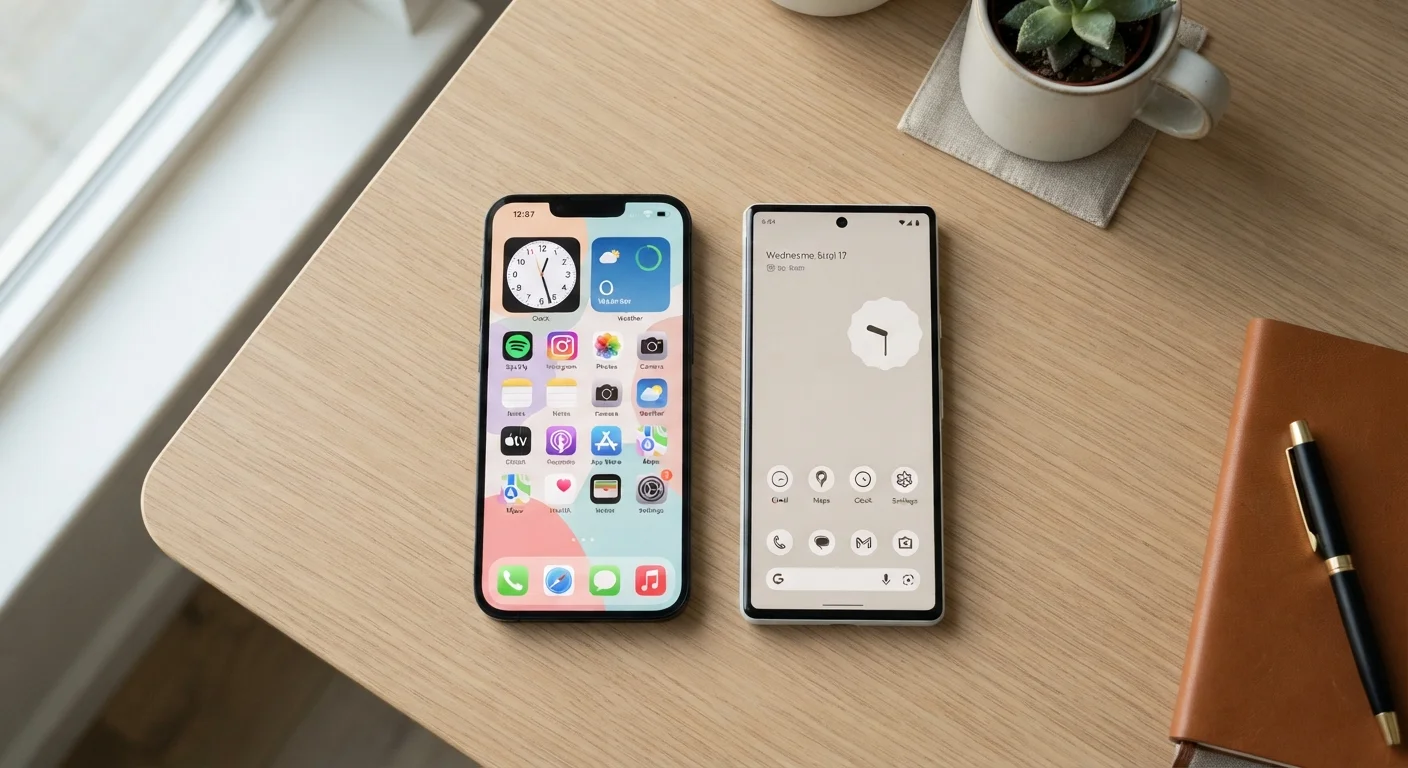
The operating system (OS) is the software that runs everything on your phone. Two platforms dominate the US market: iOS (made by Apple, found only on iPhones) and Android (developed by Google, used by many manufacturers). Both let you make calls, send messages, browse the web, and run apps - but their layouts and terminology differ.
Before you can fully use either platform, you'll need an account:
- iPhone users create an Apple ID, which connects to iCloud for backups, the App Store for downloading apps, and iMessage for texting other Apple users.
- Android users sign in with a Google Account, which ties into Google Play for apps, Google Drive for backups, and Gmail.
These accounts are important: they store your purchased apps, your backups, and your payment information. Use a strong, unique password and enable two-factor authentication - a second verification step sent to another device or email - from the start.
Switching Platforms Later Is Possible But Has Costs
Moving from iPhone to Android (or vice versa) is doable, but some things don't transfer cleanly - app purchases, iMessages, and certain backups may not carry over. It's worth understanding the platform you're starting on rather than assuming you can switch without any friction later.
Navigation, Apps, and Settings
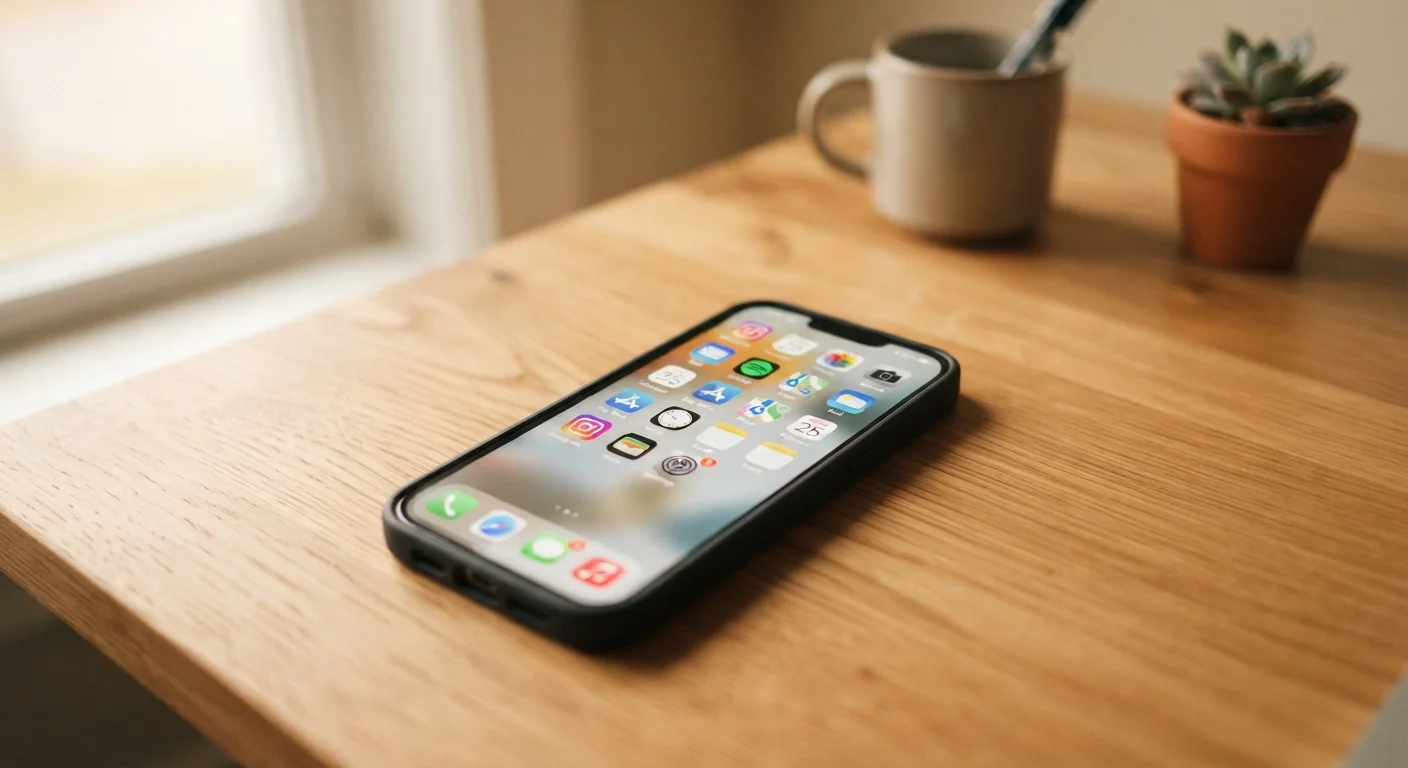
The home screen is the main screen you see after unlocking your phone. App icons sit here; tapping one opens that app. Swiping left or right moves between multiple home screen pages. Most phones also have an app drawer or library where all installed apps are stored alphabetically.
The Settings app is where you control nearly everything: Wi-Fi networks, display brightness, notification preferences, privacy permissions, and more. Spending ten minutes exploring Settings when you first set up a phone pays off significantly later.
Apps are programs you download to add functionality - navigation, banking, reading, or anything else. They come from the App Store (iPhone) or Google Play (Android). Only install apps from these official sources, and pay attention to what permissions each app requests.
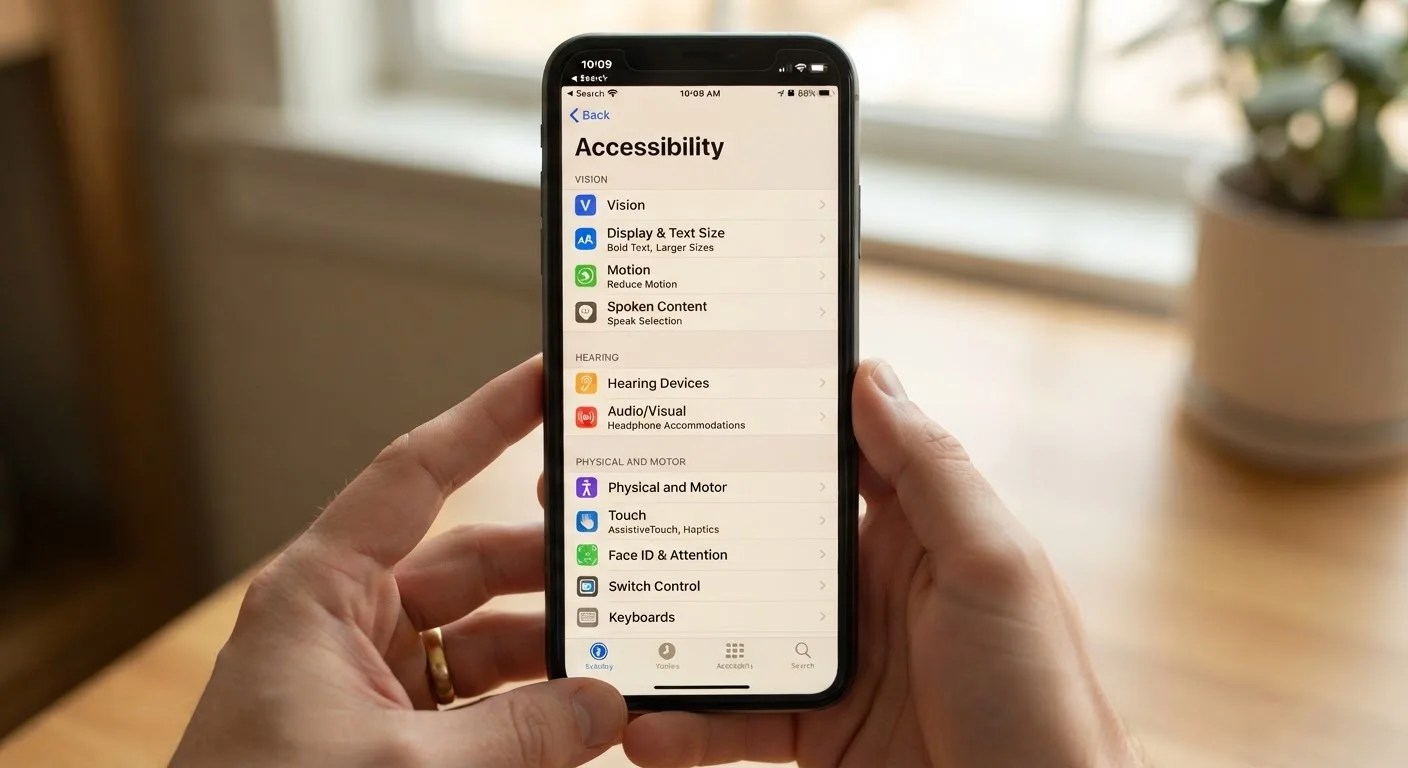
Many phones also include powerful built-in tools that go unnoticed. Our guide to accessibility features built into modern smartphones covers options like text size adjustment, display zoom, and voice control that benefit a wide range of users - not just those with disabilities.
Privacy, Security, and Good Habits
Setting up a screen lock is one of the first things to do on any phone. A PIN, pattern, or biometric option (fingerprint or face recognition) prevents unauthorized access if your device is lost or stolen. Without it, everything on your phone - messages, photos, banking apps - is immediately accessible to whoever finds it.
A few additional habits keep your phone running well and your information safer:
- Keep software updated. Operating system updates frequently include security patches. Delaying them leaves known vulnerabilities open.
- Back up regularly. Both iOS and Android offer automatic cloud backups. Enabling this means a lost or broken phone doesn't mean lost data.
- Review app permissions. Check which apps have access to your location, microphone, or camera in Settings and revoke anything that doesn't make sense for what the app does.
- Be skeptical of links. Phishing - fake messages designed to steal account credentials - works on phones just as it does on computers. Don't tap links in unexpected texts or emails asking you to verify account details.
As you grow more comfortable, you may want to explore how your phone can connect with other devices around your home. Our Home Tech & Smart Devices hub is a useful starting point, and our article on setting up your first smart home routine walks through simple automations without the technical overwhelm.
Finally, it's worth knowing that some widely repeated advice about smartphones - like always closing background apps or always charging to 100% - isn't accurate. Our piece on common smartphone myths separates habit from fact.
Never Share Your Account Password or PIN
Legitimate carrier staff, Apple support, and Google support will never ask for your account password or device PIN. Anyone requesting these - in person, by phone, or by text - should be treated as a potential scam. Guard these credentials the same way you would a bank PIN.