Desktop vs. Laptop: Which Form Factor Fits Your Life
Before worrying about any technical specification, settle one foundational question: where will you use this computer? The answer almost always determines the right form factor.
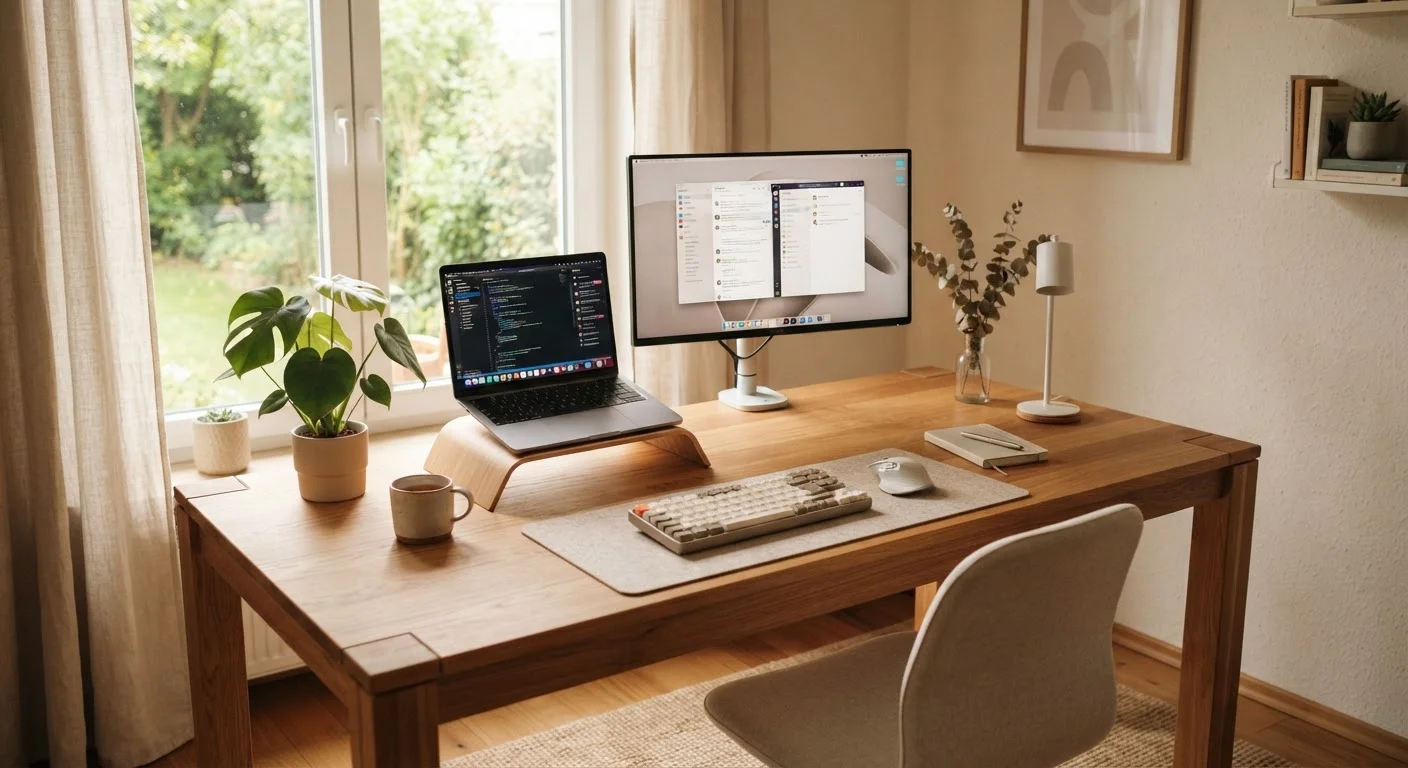
A laptop is a self-contained unit - screen, keyboard, battery, and processing power in one portable package. If you plan to move between rooms, carry it to work, or use it away from home regularly, portability genuinely matters. A desktop, by contrast, stays in one place. It connects to a separate monitor, keyboard, and mouse - and for the same budget, it typically delivers more processing power and storage, and is easier to repair or expand over time.
There's also a middle ground: all-in-one computers (where the computer components are built into the monitor) offer a tidier desk setup than a traditional desktop tower, though they're generally harder to upgrade.
Be Honest About How You'll Really Use It
Many first-time buyers overestimate how demanding their tasks will be. Writing emails, browsing the web, and watching video are far lighter workloads than editing 4K footage or running engineering simulations. A realistic self-assessment leads to a better-fitting - and usually less expensive - choice.
If you're already comfortable with a smartphone and primarily need a computer for browsing, streaming, video calls, and documents, you may not need nearly as powerful a machine as you think. Be honest about what you'll actually do - not what you imagine you might do someday.
The Specs That Actually Matter (and What They Mean)
RAM
Short for Random Access Memory - this is where your computer temporarily stores the information it's actively working with. More RAM means you can run more programs at the same time without slowdowns.
SSD
A Solid-State Drive is a type of storage that holds your files, apps, and operating system permanently. SSDs are much faster than older hard drives, which is why computers with SSDs start up and open files noticeably more quickly.
CPU (Processor)
The Central Processing Unit is the main 'brain' of a computer - it handles calculations and runs programs. A faster CPU helps with demanding tasks like editing video, but makes little difference for basic everyday use.
Operating System
The software layer that manages everything your computer does - it's what you see on screen when you turn the machine on. Common operating systems include Windows, macOS, and ChromeOS.
Storage Capacity
Measured in gigabytes (GB) or terabytes (TB), this is how much data your computer can hold permanently - your photos, documents, apps, and more. Unlike RAM, storage doesn't empty when you turn the computer off.
Form Factor
A general term for the physical shape and size of a computer - whether it's a portable laptop, a stationary desktop tower, or an all-in-one unit. Form factor determines portability, upgrade potential, and how you set it up.
Spec sheets can feel overwhelming, but only a handful of numbers have a meaningful impact on day-to-day experience for most users.
- RAM: For general use, 8GB is a functional baseline; 16GB is a comfortable upgrade if you keep many browser tabs or applications open simultaneously.
- Storage type and size: Solid-state drives (SSDs) are significantly faster than traditional hard drives (HDDs). An SSD-equipped computer will start up quickly and open files without lag. For storage capacity, 256GB is tight for many users; 512GB is more practical.
- Processor (CPU): The processor handles computation. For everyday tasks, a current mid-range processor from any major manufacturer is more than sufficient. You only need to think carefully about the CPU if you edit video, run complex software, or do other demanding work.
- Display: Screen quality matters more than most buyers expect - you'll look at it for hours daily. Resolution, brightness, and color accuracy all affect the experience, especially if you'll be watching video or working with photos.
For a deeper dive into every term you'll encounter on a product listing, see our laptop spec sheet decoder.
Operating Systems: Windows, macOS, and ChromeOS Explained
An operating system (OS) is the software layer that runs everything on your computer - it's what you see when you turn it on, and it determines which apps you can install, how files are organized, and how accessories connect.
Windows runs on the widest variety of hardware at many different price points. It supports the broadest range of software and is the dominant choice in most workplaces. If you need compatibility with specific programs or work in an office environment, Windows is usually the path of least friction.
macOS runs exclusively on Apple computers. It's known for a consistent, refined experience and integrates tightly with other Apple devices like iPhones and iPads. The hardware tends to be more expensive, but many users find the ecosystem cohesion worth it.
ChromeOS powers Chromebooks and is built around the Chrome browser. It works best when you're connected to the internet and comfortable using web-based tools (Google Docs, streaming services, email). It's typically the most affordable category and has a gentle learning curve, but it doesn't run traditional desktop software.
Your Operating System Choice Has Long-Term Implications
Switching operating systems after purchase means learning a new interface, potentially replacing software, and re-syncing your files and accounts. It's not impossible, but it's disruptive enough that it's worth getting right the first time. If you're unsure, asking someone who uses each system daily is often more useful than reading specs alone.
Your OS choice is a long-term commitment - changing later is possible but disruptive. Think about what software you need, whether your workplace uses a specific system, and which devices you already own before deciding.
How to Match a Computer to What You'll Actually Do
The most useful question to ask isn't "what's a good computer?" - it's "what will I use it for?" Here's how common use cases translate into practical requirements:
- Web browsing, email, video calls, streaming
- These tasks are light. A mid-range Chromebook or an entry-level Windows or Mac laptop handles them comfortably. Prioritize display quality and battery life over raw processing power.
- Working from home with productivity software
- Word processors, spreadsheets, and video conferencing are standard fare. 16GB RAM and a good keyboard become more important here. A reliable webcam - built-in or add-on - matters for calls.
- Photo and video editing
- This is where specs start to matter more. A capable processor, 16GB RAM or more, color-accurate display, and fast SSD storage all contribute meaningfully. Budget accordingly.
- Gaming
- Gaming has distinct hardware requirements that go beyond this guide's scope, but the key variable is the graphics processor (GPU), which standard computers often lack in meaningful form.
Once you've made your choice, our guide to setting up a new computer walks through everything from unboxing to your first secure sign-in. You might also explore accessories that improve daily use once the basics are in place.
Common Mistakes First-Time Buyers Make
First-time buyers tend to fall into a predictable set of traps - not from carelessness, but because the market makes it easy to optimize for the wrong things.
These Mistakes Cost First-Time Buyers Most
The most common and costly errors tend to be invisible at the time of purchase - chasing specs you won't use, overlooking display quality, buying too little storage, and ignoring ongoing software costs. Knowing these pitfalls in advance puts you in a much stronger position.
- Chasing the highest specs: More RAM and a faster processor sound appealing, but if your actual tasks don't need them, you're paying for capacity you'll never use. Start from your use case, not the spec sheet.
- Ignoring the display: A mediocre screen affects every hour you spend on the computer. Screen quality is often deprioritized in budget models, and it's worth evaluating carefully in person when possible.
- Underestimating storage needs: 128GB fills up faster than most buyers expect once the operating system, apps, photos, and documents accumulate. Going slightly larger upfront is almost always worthwhile.
- Overlooking software costs: The computer's sticker price doesn't include software subscriptions, cloud storage plans, or security tools you may need. Factor those into your total budget.
- Forgetting about support and longevity: A computer that won't receive software updates within a year or two of purchase is a poor long-term value regardless of its specifications.
For a fuller picture of where buyers go wrong, our article on common computer buying mistakes covers the most frequent missteps in detail. And for the longer view of what ownership actually involves, understanding computer ownership is a helpful companion read.