Choosing the Right Computer for Your Needs
Every computer purchase starts with the same fundamental question: what will you actually use it for? A machine built for video editing has very different requirements than one used primarily for email, browsing, and video calls. Before looking at any specifications, it helps to list your most common tasks - and be honest about them.
For most everyday users, priorities include a comfortable display, a responsive keyboard, solid battery life (for laptops), and enough storage to hold photos, documents, and applications without constantly running out of space. RAM - short for random-access memory, which handles how many tasks a computer can juggle at once - is worth paying attention to, as is processing power. That said, chasing the highest numbers rarely pays off for typical home use.
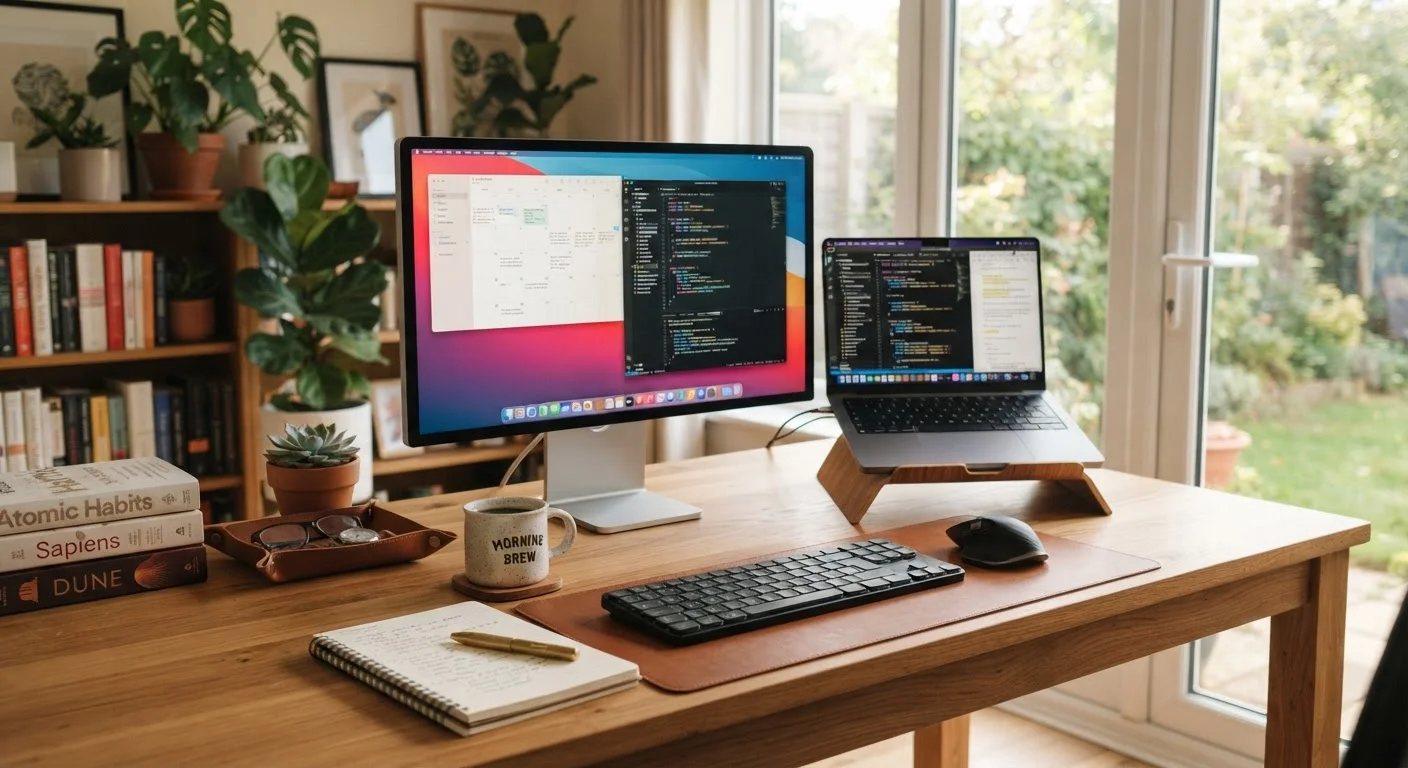
Common buying mistakes include over-prioritizing raw specifications while overlooking practical factors like display quality, port selection, and how comfortable the device feels to use day to day. If you're weighing a more hands-on option, building a custom desktop has genuine advantages - but also real trade-offs in time and technical effort.
5-8 years
Typical useful lifespan of a personal computer
Industry guidance and repair professionals generally cite this range, though actual lifespan varies based on maintenance and use.
~60%
Share of US adults who own a desktop or laptop
According to Pew Research Center surveys on technology ownership among American adults.
3x
More likely: data loss from hardware failure vs. theft
Storage hardware failure is consistently cited as one of the leading causes of data loss for personal computer users.
Setting Up Your New Computer the Right Way
The first hour with a new computer matters more than most people realize. A rushed or incomplete setup can leave gaps in security and cause avoidable problems later. Taking time to do it properly pays dividends throughout the machine's entire lifespan.
Start by connecting to a trusted Wi-Fi network and running all available system updates before doing anything else. Manufacturers regularly release patches that fix security vulnerabilities and improve stability - installing them from day one is essential. Next, create or sign into a user account with a strong, unique password, and enable two-factor authentication (a secondary verification step, often a code sent to your phone) wherever the system supports it.
For a thorough walkthrough of this process, the guide to setting up a new computer without the headaches covers everything from unboxing to your first secure sign-in.
Create a Recovery Option Before You Need It
During initial setup, most operating systems prompt you to create a recovery drive or link a recovery email and phone number. Don't skip this step. If you're ever locked out of your account or the system fails to start, having a recovery option in place can save hours of frustration and prevent data loss.
Keeping Your Computer Secure
Security isn't a one-time checkbox - it's an ongoing practice. The most common threats to everyday users include phishing emails (fraudulent messages designed to steal login credentials), malicious software downloaded from untrustworthy sites, and weak or reused passwords that make accounts easy to compromise.
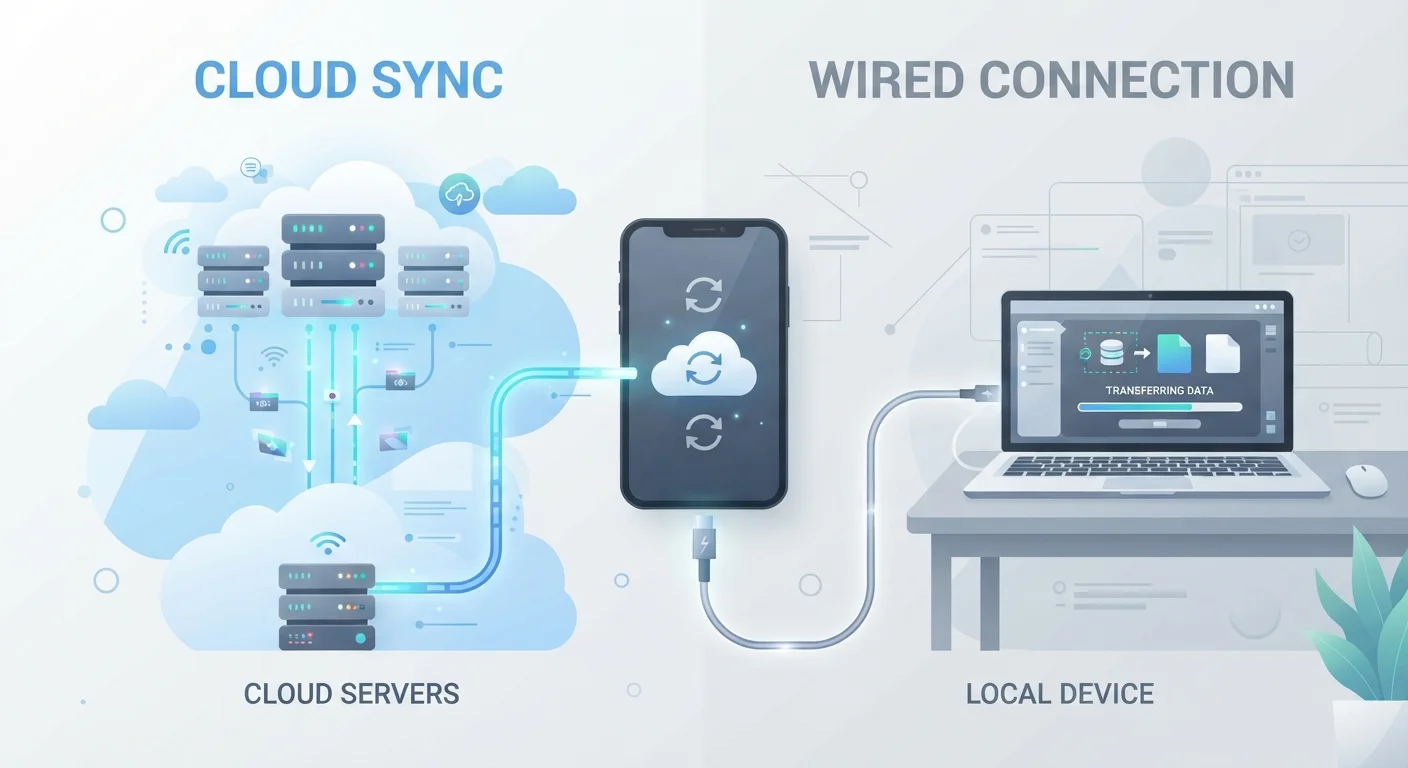
A few habits go a long way. Keep your operating system and applications updated, since most updates include security fixes. Use a reputable password manager to generate and store complex, unique passwords for every account. Back up important files regularly - either to an external drive or a cloud service - so that a hardware failure or ransomware attack doesn't result in permanent data loss.
Back Up Before You Need It - Not After
Hard drives and SSDs can fail without warning, and ransomware attacks can encrypt files in minutes. Maintaining at least one up-to-date backup copy of your important files - stored separately from the computer itself - is the single most effective way to protect against permanent data loss. The time to set up a backup system is before anything goes wrong.
For households with children or shared devices, reviewing privacy settings and parental controls as part of the initial setup is equally worthwhile. Security tools built into modern operating systems - such as built-in firewalls and encrypted storage - are generally worth enabling, even for non-technical users.
Maintaining Performance Over Time
Computers slow down for predictable reasons: storage fills up, software accumulates, and the operating system gradually accrues background processes that consume resources. None of this is inevitable if you build a few simple habits.
Regularly review what's installed and uninstall programs you no longer use. Keep your storage drive - whether a traditional hard drive or a faster solid-state drive (SSD) - from reaching capacity, as a nearly full drive noticeably degrades performance. For physical upkeep, periodically cleaning dust from vents and keyboards helps prevent overheating, which over time can shorten hardware life.
The guide on keeping your computer running well for the long term outlines specific maintenance habits that can meaningfully extend how long your machine stays fast and reliable.
Set a recurring monthly reminder to check for software updates and clear your Downloads folder - these two habits alone prevent a surprising share of performance problems.
Accumulated downloaded files and deferred updates are among the most common - and most avoidable - causes of gradual system slowdown.
If your laptop feels hot during normal use, check that its vents aren't blocked and consider using it on a hard, flat surface rather than a bed or cushion.
Sustained overheating accelerates wear on internal components, particularly the battery and processor, reducing the machine's overall lifespan.
Recognizing When It's Time to Replace
Even a well-maintained computer has a natural lifespan. For most users, that range falls somewhere between five and eight years, though individual experience varies based on usage, build quality, and how well the machine has been maintained. The clearest signals that a replacement may be warranted are when routine tasks feel noticeably slow, when the device can no longer run current software or receive operating system updates, or when repair costs approach the cost of a new machine.
Before concluding that replacement is necessary, it's worth ruling out software-side causes of slowness - a fresh operating system installation or a storage upgrade can sometimes restore meaningful performance. However, when the hardware itself is the bottleneck, or when security updates are no longer available from the manufacturer, continuing to use the machine carries real risk.
Unsupported Operating Systems Are a Security Risk
When a manufacturer stops releasing security updates for an operating system version, that machine becomes increasingly vulnerable to known exploits. Continuing to use an unsupported OS for sensitive tasks like banking or email is not advisable. If the hardware can't run a current OS version, that's a strong signal that replacement is overdue.
Responsibly Disposing of an Old Computer
Before any computer leaves your hands, wiping the storage drive is non-negotiable. Simply deleting files or resetting the operating system to factory settings is often not sufficient - data recovery tools can retrieve information from drives that appear blank. Most operating systems include a secure erase option, and there are reputable third-party tools designed specifically for this purpose. For maximum certainty, physical destruction of the drive is an option, though less practical for most households.
Once the drive is wiped, electronics recycling programs offered by manufacturers, retailers, and municipal waste facilities provide a responsible disposal path. These programs prevent toxic materials found in circuit boards and batteries from reaching landfills. Donating a still-functional machine to local schools, libraries, or nonprofits is another option - provided the device is securely wiped and still capable of running supported software.
Thoughtful disposal is the final responsibility of computer ownership, and it connects to the broader care you've given the device throughout its life. For other connected devices around the home, home tech and smart device guidance offers useful context on managing your broader technology environment.
Setting Up a New Computer Without the Headaches
A step-by-step walkthrough for getting a new PC or Mac ready to use, from unboxing through your first secure sign-in. Ideal for first-time buyers or anyone starting fresh.
Keeping Your Computer Running Well for the Long Term
Practical maintenance habits - from storage management to hardware cleaning - that help keep your computer fast and reliable over years of use.
Electronics Recycling Locator (EPA)
The U.S. Environmental Protection Agency maintains resources to help consumers find certified electronics recyclers and responsible disposal programs in their area.