Why Accessories Matter More Than Most People Realize
Most people focus their energy on a computer's internal specs - processor speed, RAM, storage - when choosing or upgrading their setup. Those factors matter, and our guide to RAM, storage, and processing speed explains what they actually do. But once a computer is up and running, the accessories you connect to it shape nearly every interaction you have with it.
The keyboard you type on for hours, the screen you're staring at all day, the mouse you're clicking hundreds of times - these are where the real-world experience lives. Unlike internal components, peripherals are also much easier to swap, upgrade, or carry between machines. That flexibility makes them a practical first focus for improving how your workspace actually feels to use.
Below are the accessories most likely to produce a noticeable, everyday difference - with plain explanations of what each one changes and why.
An External Monitor
If you're using a laptop as your primary computer, plugging into an external monitor is one of the highest-impact changes you can make. A larger screen reduces the need to scroll constantly, lets you keep multiple windows visible side by side, and typically offers better color accuracy and brightness than built-in laptop displays.
Resolution is the key spec here. A FHD (1920×1080) panel is a baseline; a QHD or UHD (4K) panel delivers noticeably sharper text and images, which matters especially over long work sessions. Panel type - IPS, VA, or OLED - affects viewing angles and color reproduction, with IPS being the most widely recommended for general office use.
Screen size is personal, but most desk workers find 24-27 inches to be a comfortable range. If you also work with photos, video, or design, color accuracy becomes more important than raw size.
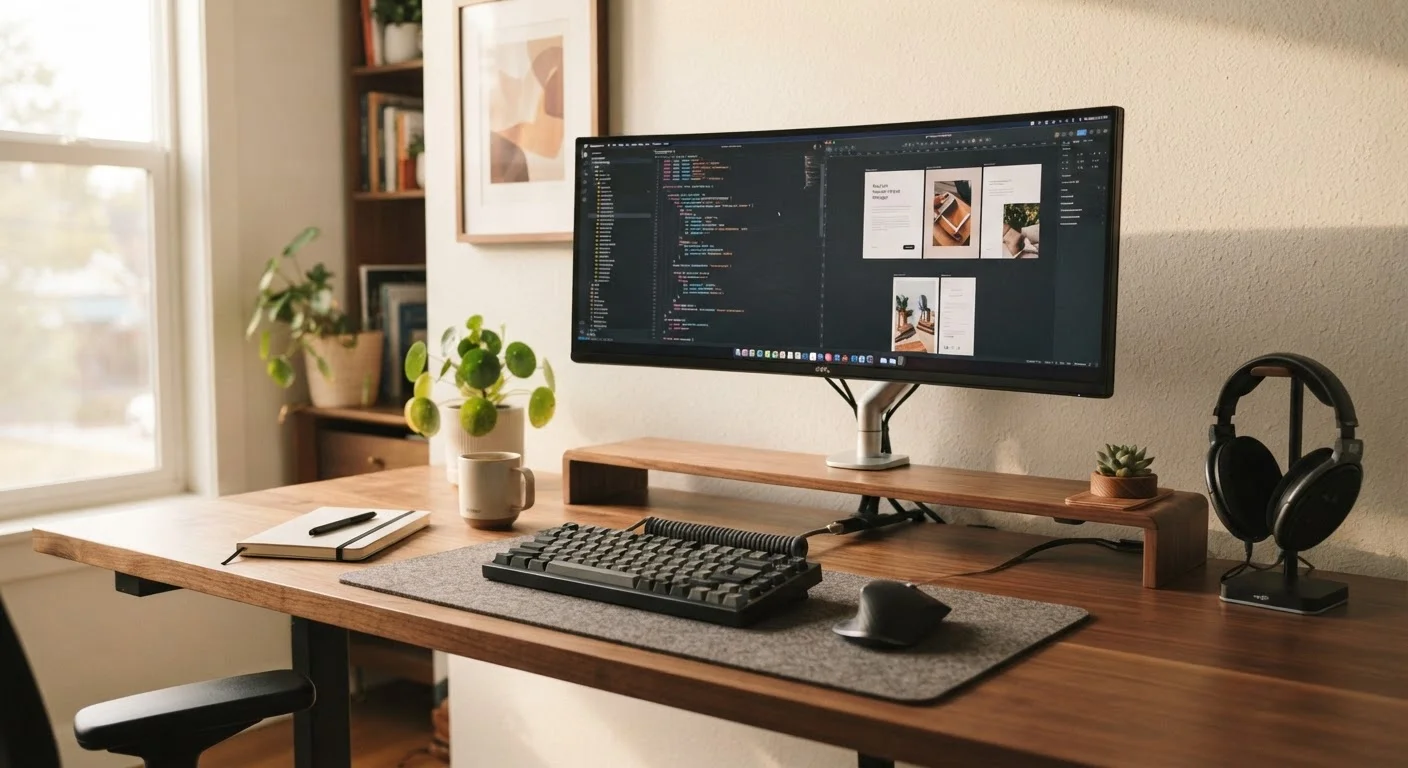
A larger, sharper external monitor can reduce eye fatigue and keep more information visible at once.
A Full-Size or Mechanical Keyboard
Laptop keyboards are engineered for portability, not prolonged typing. They tend to have shallow key travel - the distance a key moves when pressed - which can contribute to finger fatigue over time. An external keyboard, especially one with deeper travel, often feels meaningfully better to type on.
Mechanical keyboards use individual physical switches beneath each key, producing tactile feedback and a distinct feel that many typists prefer. They're more durable than membrane keyboards (which use a single rubber layer beneath all keys) and come in switch varieties ranging from quiet and linear to clicky and tactile. That said, a quality membrane keyboard is quieter and often more than adequate for most home or office use.
Ergonomic keyboard shapes - split designs or those with a slight tilt - are also worth knowing about if you experience wrist or shoulder tension during long typing sessions.
Deeper key travel and physical switch feedback can make extended typing sessions noticeably less tiring.
An Ergonomic Mouse
Standard flat mice force the hand into a slightly pronated (palm-down) position, which some users find creates tension in the wrist and forearm over time. Ergonomic mice are shaped to allow a more neutral, handshake-like grip, which reduces that rotational stress.
Vertical mice are the most distinctly shaped variety - the hand rests on its side rather than lying flat. Trackball mice are another option: the cursor is moved by rolling a ball with the thumb or fingers rather than moving the whole device, which means the mouse itself stays stationary. Both designs are worth considering if you work at a desk for long hours.
Wireless mice have improved significantly in reliability and response time. For most office work, there's no meaningful lag difference between a wired and wireless mouse; the choice comes down to preference and desk cable management.
An ergonomic mouse shape encourages a more neutral wrist position, reducing strain during extended use.
A USB Hub or Docking Station
Modern laptops - particularly thin ones - often ship with only one or two ports, frequently USB-C. That creates an immediate problem when you want to connect a monitor, keyboard, mouse, and USB drive simultaneously. A hub or docking station solves this by expanding a single port into several.
A basic USB hub adds a few USB-A ports and perhaps an SD card reader. A docking station is more capable: it typically adds multiple display outputs, ethernet (a wired internet connection, more reliable than Wi-Fi for video calls), and charging pass-through, all from a single cable to your laptop.
The right choice depends on how many things you need to connect and whether you move between locations regularly. Docking stations shine for a permanent desk setup; hubs are more portable. As noted in our overview of ports and connectivity, knowing what ports your computer actually has is essential before choosing either.
A docking station can turn a single USB-C port into a full desk setup with one cable connection.
A Webcam and External Microphone
Built-in laptop webcams are typically positioned at the bottom of the screen or at an awkward angle, producing unflattering video quality for calls. A standalone webcam mounted at eye level produces a more natural image and usually captures better low-light performance through a larger sensor and wider aperture.
Audio quality matters as much as video - arguably more. Built-in microphones pick up room echo, keyboard noise, and ambient sound. An external USB microphone or even a headset with a boom mic (a microphone on a small arm positioned near the mouth) delivers clearer voice capture and reduces distracting background noise for other participants on calls.
These upgrades are particularly relevant if you work remotely, take video calls frequently, or record any kind of audio or video content. The perceptual quality difference is immediate and obvious to everyone on the other end of the call.
Clear audio matters more than most people expect - a basic external mic makes a big difference on calls.
A Monitor Stand or Laptop Riser
Screen height is a often-overlooked ergonomic factor. When a monitor or laptop screen sits too low, the head tilts forward and downward for hours at a time - a posture linked to neck and upper back discomfort. The general guidance from ergonomics researchers is that the top of the screen should be roughly at eye level when seated upright.
A monitor stand raises an existing display to a better height and often adds storage space beneath it. A laptop riser performs the same function for a laptop - though if you raise a laptop screen, you'll need an external keyboard and mouse, since the built-in ones will no longer be at desk level.
This is one of the lower-cost and easier-to-implement changes on this list, and its benefits compound over years of daily use. For a broader view of keeping your setup running well, our guide to long-term computer care covers habits that extend your machine's useful life alongside your physical setup.
Raising your screen to eye level is a simple, low-cost change with meaningful long-term posture benefits.
Building a Setup That Works for You
None of these accessories require buying everything at once. A useful starting point is identifying your biggest current friction: eye fatigue after long sessions suggests a monitor upgrade; wrist discomfort points toward an ergonomic mouse or keyboard; missed video calls hint at audio or camera quality. Solve one real problem before adding more.
Start With Your Biggest Pain Point
Rather than overhauling your entire setup, spend a week noticing where you feel the most friction - tired eyes, sore wrists, poor call quality, not enough ports. Addressing one concrete problem at a time is more effective and easier to evaluate than changing everything at once. You'll also have a clearer sense of what each upgrade actually changed.
It's also worth checking what ports your computer has before purchasing. As our port and connectivity explainer covers, not every machine has the same outputs - especially on laptops - and knowing this upfront saves you from compatibility headaches. And if you're earlier in your decision-making process and still evaluating your main machine, our guide for first-time computer buyers is a grounded place to start.
A well-matched set of accessories won't make a slow computer fast, but it can make a capable computer genuinely enjoyable to use - and that distinction matters more than most spec sheets let on.