Why Ports Still Matter in a Wireless World
Wireless technology has come a long way, but physical ports remain essential. They handle tasks that Wi-Fi and Bluetooth still can't match - like transferring large files quickly, driving high-resolution displays, or charging a device reliably without interruption. Knowing what the ports on your computer actually do helps you choose the right accessories and avoid frustrating compatibility surprises.
If you're buying a new computer, ports deserve more attention than they typically get. See how they factor into the broader decision in our guide on common computer-buying mistakes.
| USB-A Max Speed (USB 3.2) | Up to 20 Gbps (USB Implementers Forum specification) |
| Thunderbolt 4 Max Data Speed | 40 Gbps (Intel Thunderbolt 4 specification) |
| HDMI 2.1 Max Resolution | Up to 10K (HDMI Forum, HDMI 2.1 specification) |
| USB-C Plug Orientation | Reversible - either side up |
| Thunderbolt Physical Connector | Same shape as USB-C (Intel Thunderbolt documentation) |
| DisplayPort Max Refresh (DP 2.1) | Up to 240Hz at 4K (VESA DisplayPort 2.1 specification) |
The Most Common Ports Decoded
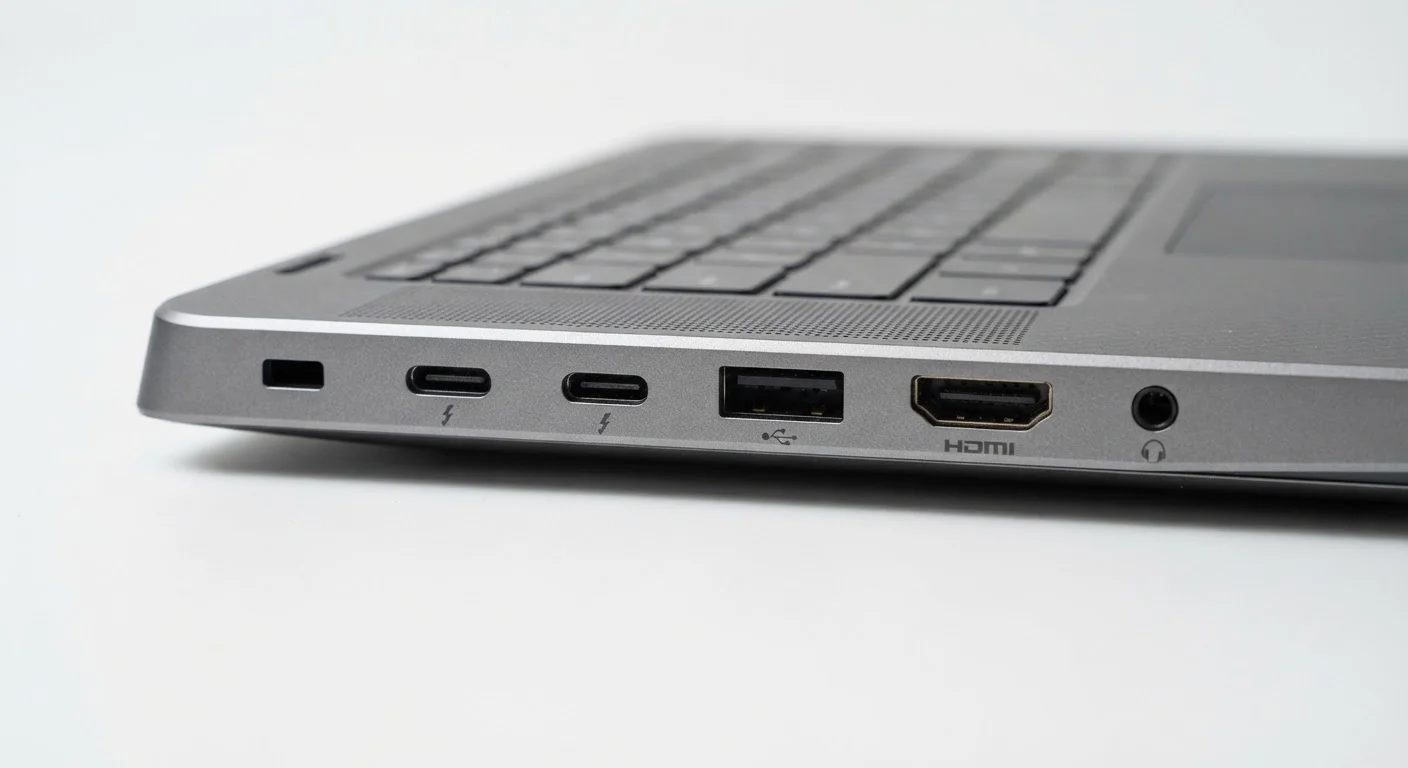
Here's a plain-language breakdown of the ports you're most likely to encounter:
USB-A
The rectangular port that most people simply call "USB." USB-A has been the standard for decades and works with flash drives, mice, keyboards, and countless other accessories. It's reliable and universal, though it only plugs in one way.
USB-C
A smaller, oval-shaped connector that can be inserted either way. USB-C is increasingly the default on newer computers and does much more than USB-A - it can carry data, video, and power delivery all through the same cable, depending on the device. Not all USB-C ports are equal, though; some support faster speeds or video output while others are more limited.
Thunderbolt (3 and 4)
Thunderbolt ports use the same physical connector as USB-C but offer significantly higher data transfer speeds and broader capabilities, including daisy-chaining multiple monitors or external storage devices. A Thunderbolt port is typically marked with a lightning bolt icon. These are especially useful for creative professionals moving large files or running multi-monitor setups.
HDMI
The trapezoidal port used to send audio and video to an external monitor or TV. HDMI is widely supported across displays and projectors, making it the most accessible video output option for most consumers. Different HDMI versions support higher resolutions and refresh rates, so older cables or ports may limit output quality.
DisplayPort
Similar in purpose to HDMI but more common on monitors designed for professional or gaming use. DisplayPort often supports higher refresh rates and resolutions than equivalent HDMI versions, and some computers include a Mini DisplayPort variant.
SD Card Slot
Found on many laptops, this slot accepts the memory cards used in digital cameras and some other devices, enabling direct file transfer without a separate adapter.
3.5mm Audio Jack
The small circular port for wired headphones or speakers. It's becoming less common on thin laptops, but remains widely used and valued for its simplicity and zero-latency audio.
USB
Universal Serial Bus - a standardized connection system for transferring data and power between devices. It comes in several physical shapes (USB-A, USB-C) and speed versions.
Thunderbolt
A high-speed interface developed by Intel that uses a USB-C shaped connector. It supports faster data transfer, video output, and daisy-chaining multiple devices compared to standard USB-C.
HDMI
High-Definition Multimedia Interface - a common port for sending audio and video signals from a computer to a monitor, TV, or projector using a single cable.
DisplayPort
A video and audio output standard common on monitors and some computers, often supporting higher resolutions and refresh rates than equivalent HDMI versions.
Docking Station
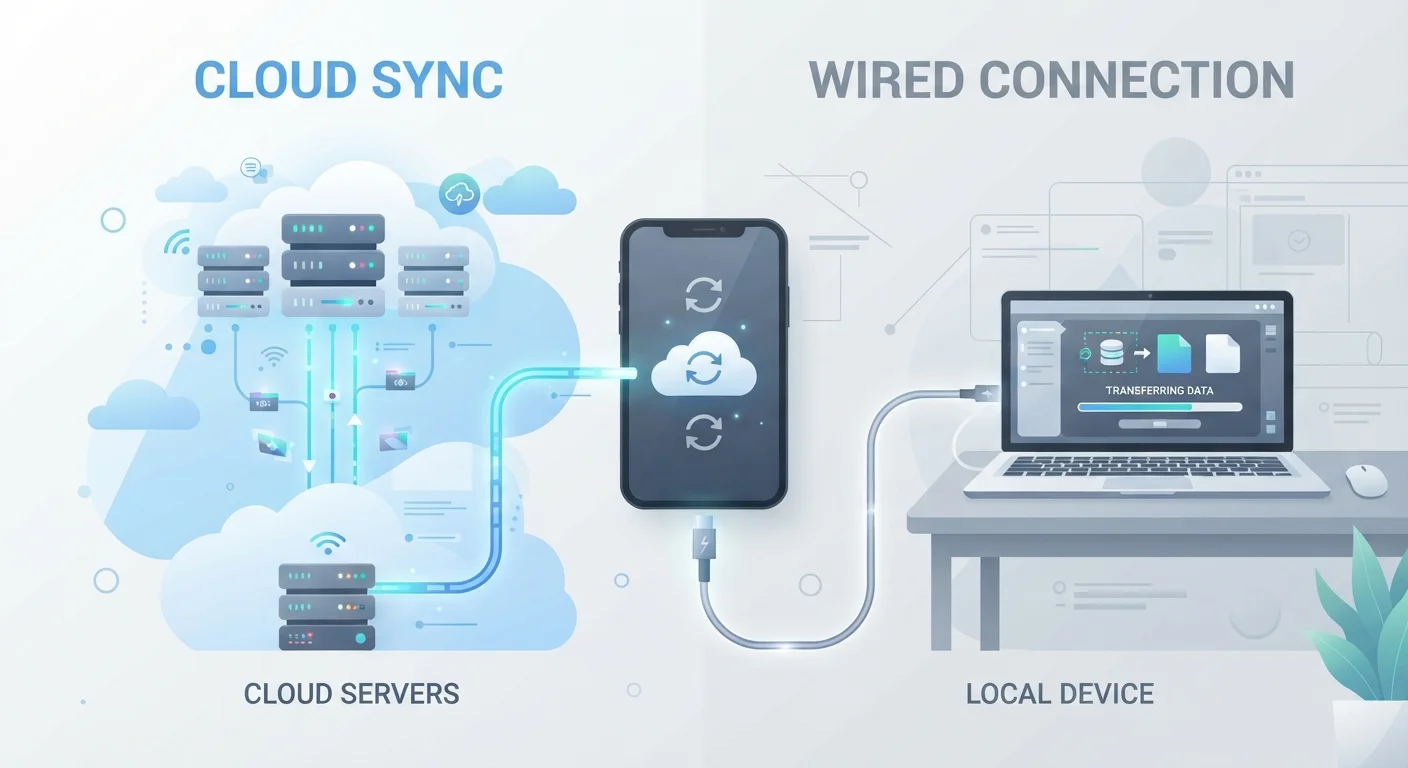
An external device that connects to a laptop - usually via USB-C or Thunderbolt - and expands available ports, including USB-A, ethernet, HDMI, and audio, from a single connection.
Power Delivery (PD)
A USB-C feature that allows a port to charge a laptop or other device through the same cable used for data or video, eliminating the need for a separate power adapter in some cases.
What to Check Before You Buy or Connect
Port quantity and variety differ considerably between computers. Ultra-thin laptops often sacrifice ports for compactness, meaning you may need a hub or dock to expand connectivity. A USB hub or docking station can multiply a single USB-C port into several USB-A, HDMI, and ethernet connections simultaneously.
Before purchasing any accessory - a monitor, external drive, or adapter - confirm that both ends of the connection are compatible. A USB-C cable, for example, does not guarantee Thunderbolt performance unless both the cable and port specifically support it.
For everyday wireless connectivity decisions that complement your wired setup, our article on when to use mobile data vs. Wi-Fi offers useful context. And if you want to get the most from your peripherals long-term, explore computer accessories that genuinely improve daily use.
Not All USB-C Ports Are the Same
Two computers can both have USB-C ports but offer very different capabilities. One may support Thunderbolt 4 and 100W power delivery; another may only handle basic data transfer. Always check the manufacturer's port specifications - usually found in the tech specs section of the product page - before assuming a USB-C port will do everything you need.