What a Gigabyte Actually Means
When a phone listing says "128 GB," that number describes its internal storage capacity - the permanent space available for your operating system, apps, and personal files. A gigabyte equals 1,024 megabytes, and a megabyte equals 1,024 kilobytes. In practical terms, one gigabyte holds roughly 200-250 smartphone photos shot at a standard resolution, around 250 songs in a typical audio format, or about 30 minutes of HD video.
Storage is frequently confused with RAM. RAM (random access memory) is the workspace your phone uses while actively running apps - it is temporary and clears when you restart the device. Storage is the filing cabinet: data stays there whether the phone is on or off. Understanding how RAM, storage, and processing speed differ is helpful context if you want the broader picture.
10-20 GB
Typical space used by the OS before setup
Manufacturers and operating system requirements consume a meaningful portion of advertised storage before any personal data is added.
~400 MB
Storage used per minute of 4K video
File sizes vary by phone and settings, but 4K recording at standard frame rates is among the heaviest consumers of smartphone storage.
128 GB
Most common capacity tier sold today
128 GB has become the entry point on many mid-range and flagship devices, reflecting growing media consumption habits among typical users.
How Storage Gets Used - and What Eats It Fastest
Before you store a single photo, your phone has already consumed storage. The operating system alone typically uses 8-15 GB, and pre-installed apps from the manufacturer can add several gigabytes more. On a phone marketed as 64 GB, you might realistically start with 45-50 GB of usable space.
After that, the biggest culprits are usually:
- Photos and videos - a single 4K video clip can exceed 400 MB per minute. Camera settings such as resolution and HDR mode directly affect file size. Your camera settings control more than you might think, including how large each image file becomes.
- Apps and games - a basic social media app may use 100-200 MB, but some mobile games exceed 2-4 GB once installed.
- Downloaded content - offline music playlists, podcasts, and video episodes add up quickly if you regularly save content for travel.
- App caches and data - apps accumulate temporary files over time that are not always visible but occupy real space.
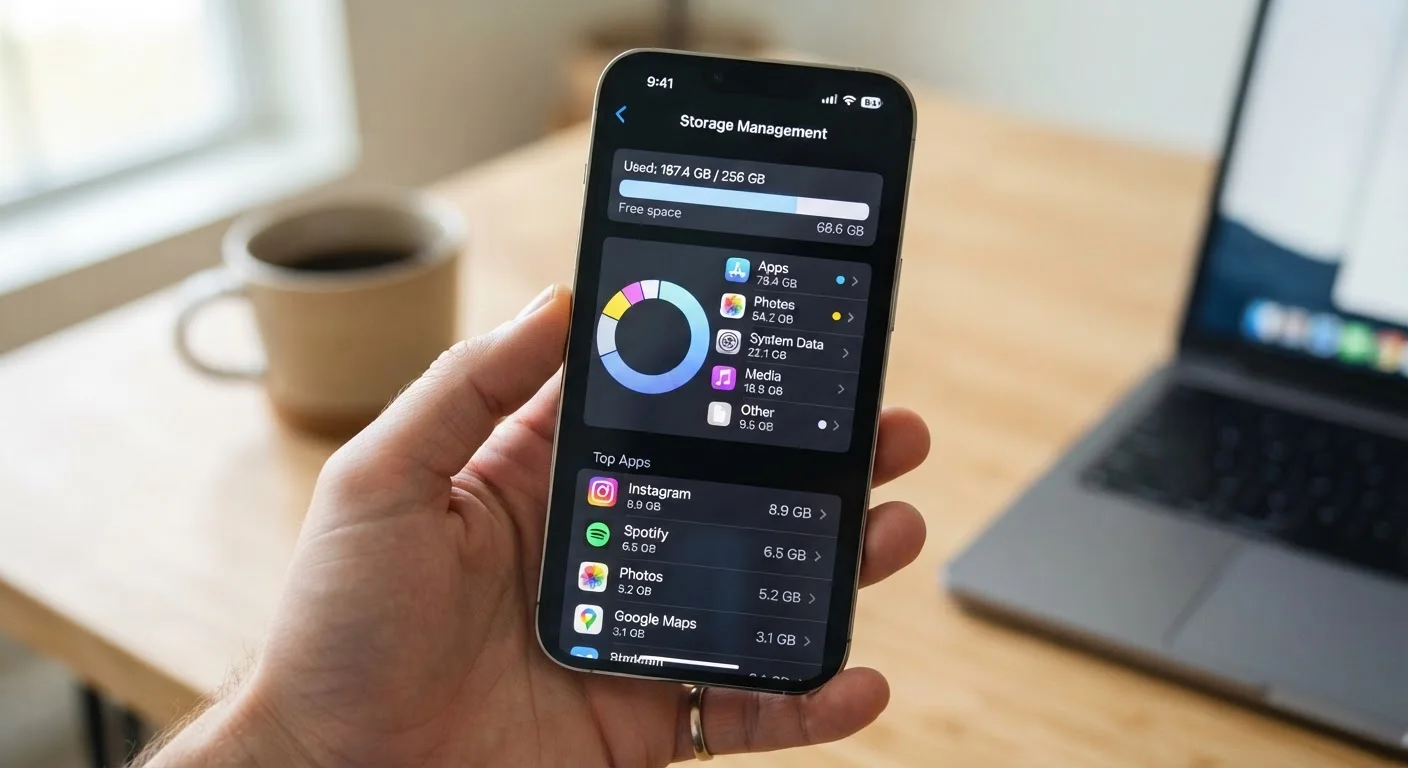
Check Storage Before You Run Out
Make a habit of reviewing your phone's storage breakdown every few months rather than waiting until the device slows down or warns you it is full. Catching the trend early gives you time to offload files, delete unused apps, or arrange a cloud backup without urgency.
How to Estimate What Capacity You Actually Need
The most reliable way to gauge your storage needs is to check your current device. On iPhone, navigate to Settings > General > iPhone Storage. On Android, look under Settings > Storage. Both show total usage broken down by category.
As a general framework based on common usage patterns:
| User Type | Suggested Capacity |
|---|---|
| Casual user (calls, texts, light apps, cloud-synced photos) | 64-128 GB |
| Everyday user (social media, moderate photo/video, some downloads) | 128-256 GB |
| Heavy user (frequent 4K video, large games, offline media) | 256 GB or more |
These are starting points, not guarantees - your actual needs depend on your habits. If your current phone is regularly near full, stepping up one tier is a reasonable approach. New to smartphones entirely? There's broader guidance on understanding phone specs and setup that can help you get oriented.
iPhone Storage Cannot Be Expanded
Unlike some Android phones that accept microSD cards, iPhones have no slot for additional storage. The capacity you choose at purchase is permanent. If you are between two tiers, leaning toward the larger option at the outset is generally the more practical choice for long-term use.
Cloud Storage: A Complement, Not a Replacement
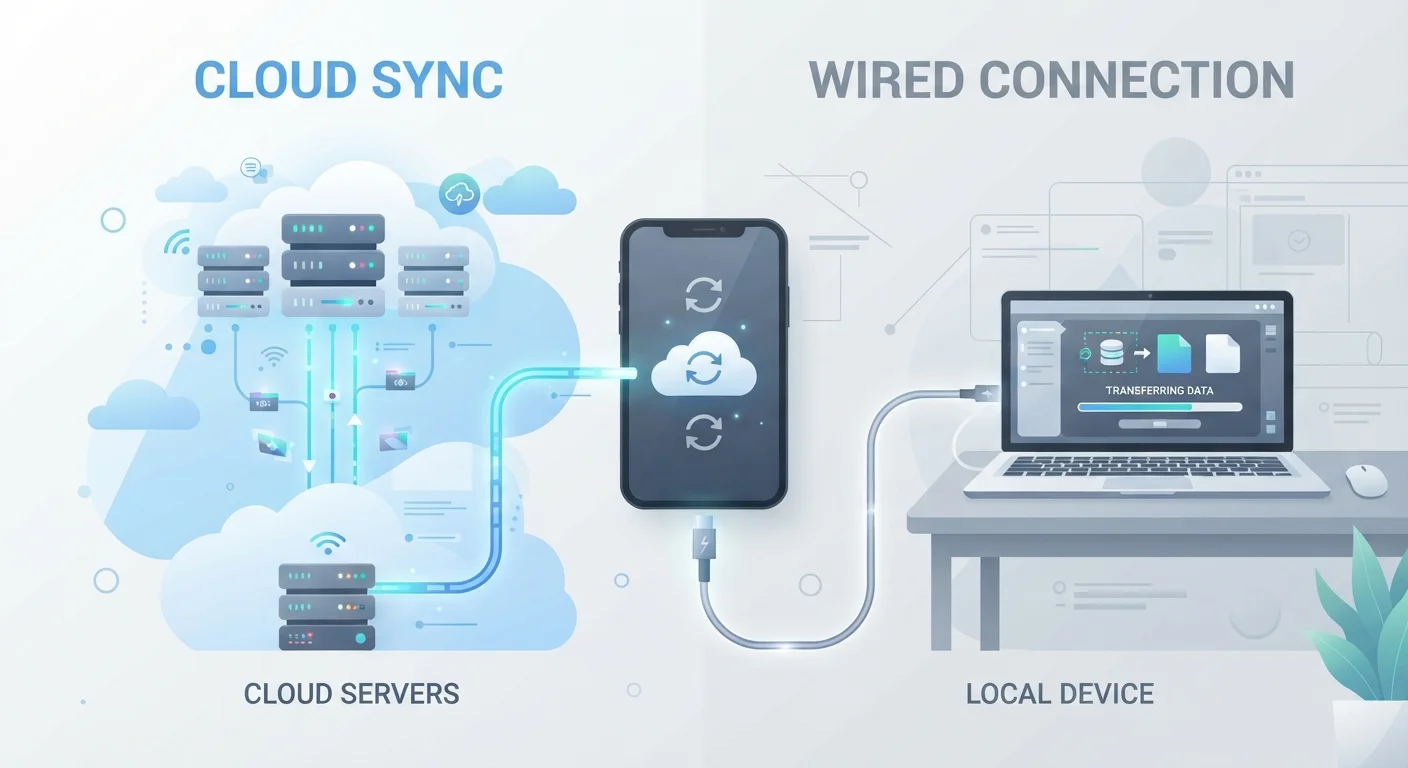
Cloud services such as iCloud, Google Photos, and others can reduce how much you need to keep on your phone by automatically backing up and syncing photos, videos, and files. This is useful - but it comes with trade-offs worth understanding.
Files stored only in the cloud are unavailable without an internet connection. If you are on a plane, in a rural area, or dealing with slow data speeds, cloud-only content may be inaccessible. There is also a privacy dimension: data stored on remote servers is subject to the terms and security practices of that provider. The on-device versus cloud trade-off has real privacy implications worth reading about before relying heavily on cloud storage.
A practical approach for many users: use cloud backups to protect photos and free up local space periodically, while keeping offline copies of anything you access regularly. If your phone is already full, there are structured ways to reclaim space without losing important files.